
How to add your team to Picktime?
You are only a few steps away from creating your first appointment. You also must have noticed that you have already been added to the list of your team members. Let’s see how you can add your other team members to your Picktime account.
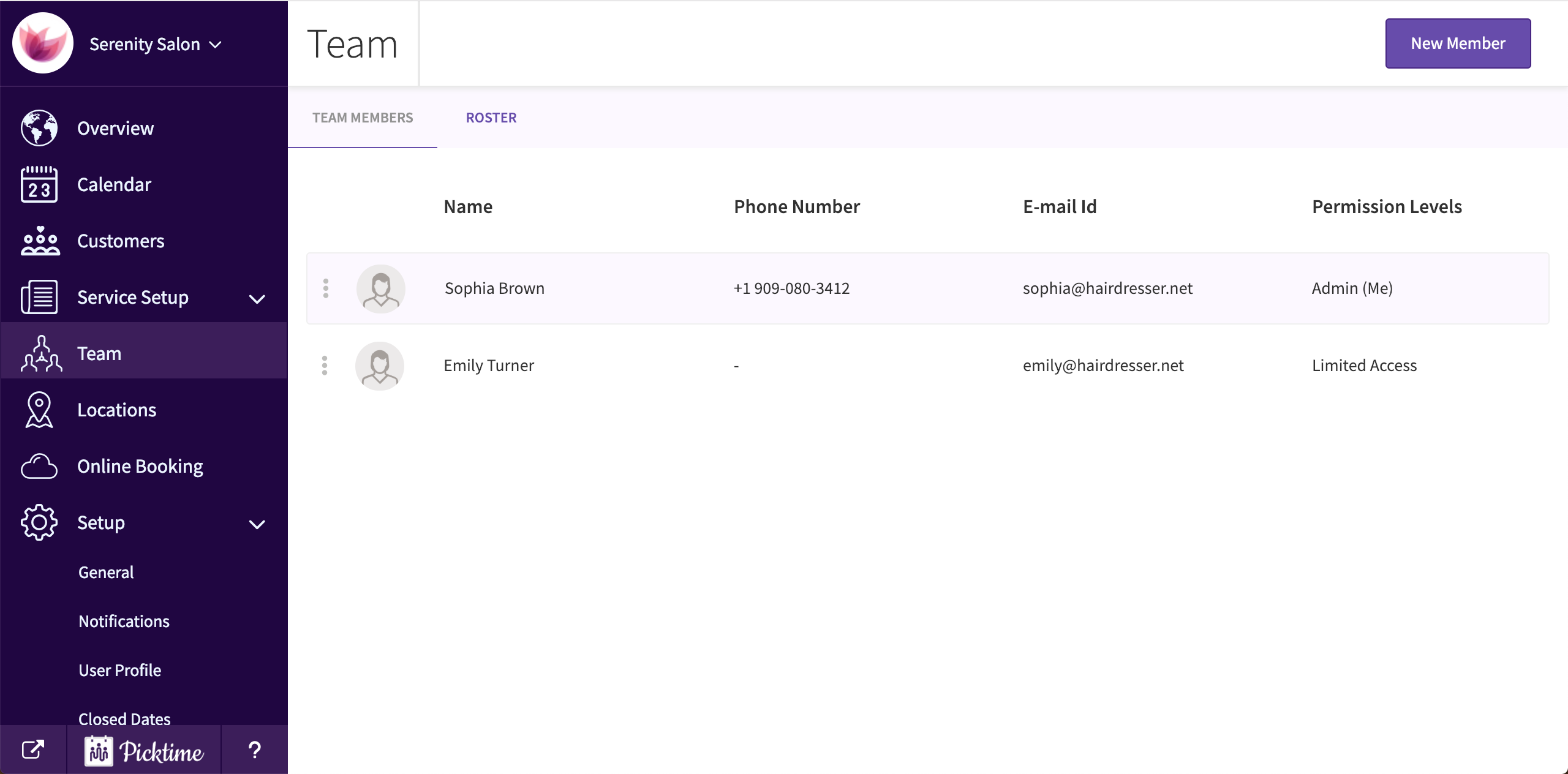
- Go to the side navigation and click on “Team’’.

- You will see that you have already been added as a team member with admin permissions.
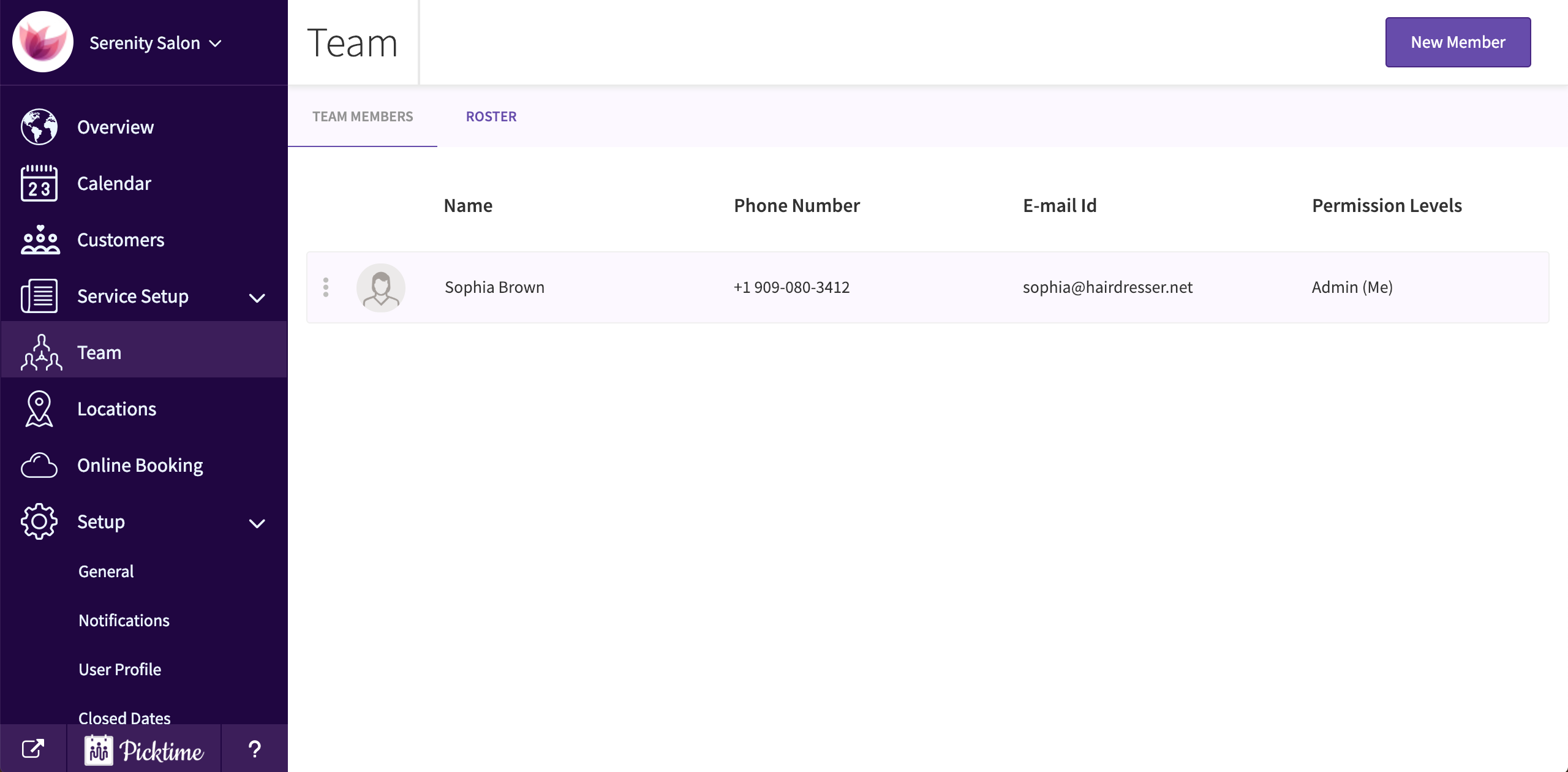
- Click on the ‘New Member’ button which you can see on the top right corner of the screen.
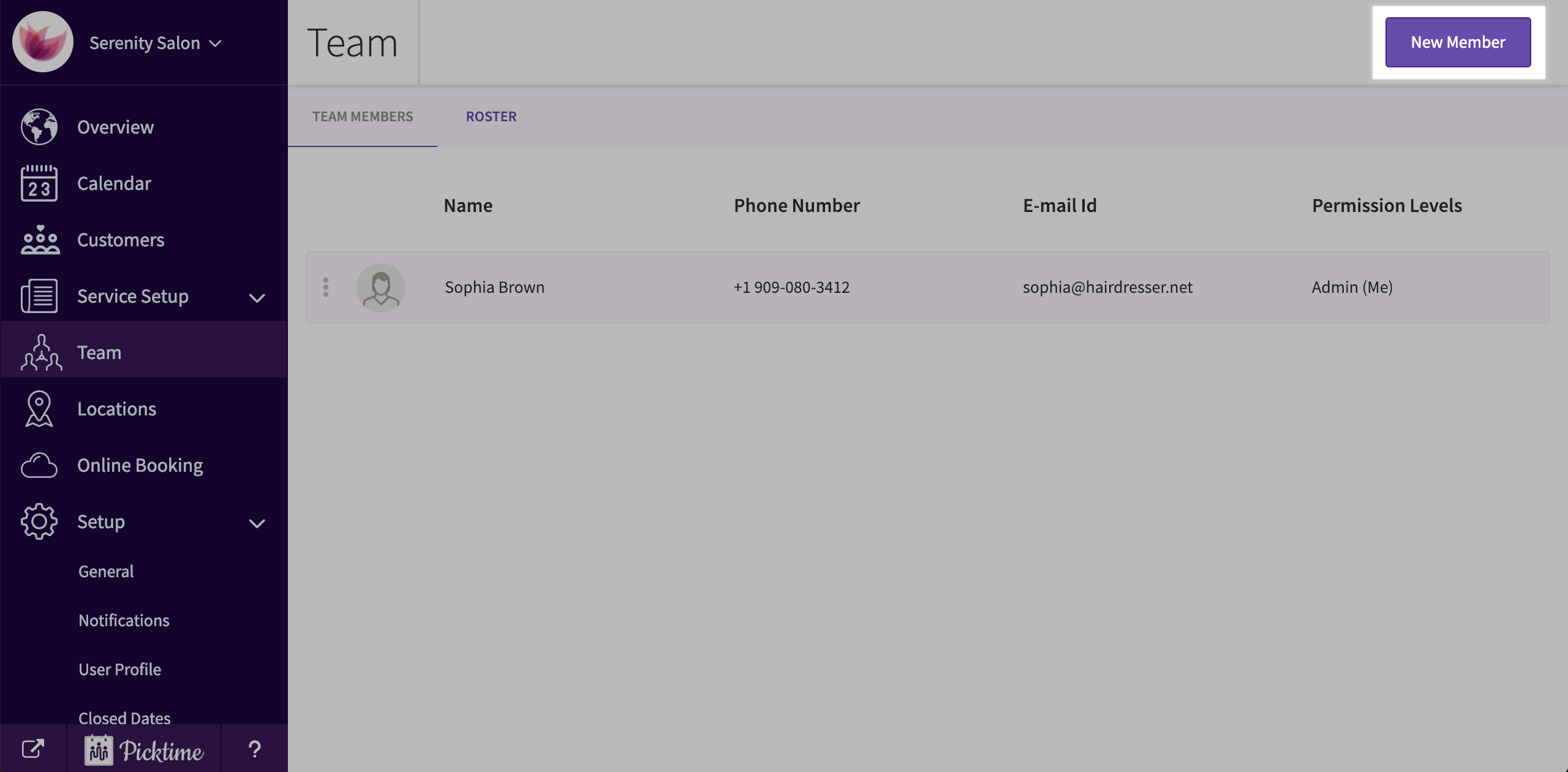
- Enter the Email Id of your team member and click next.
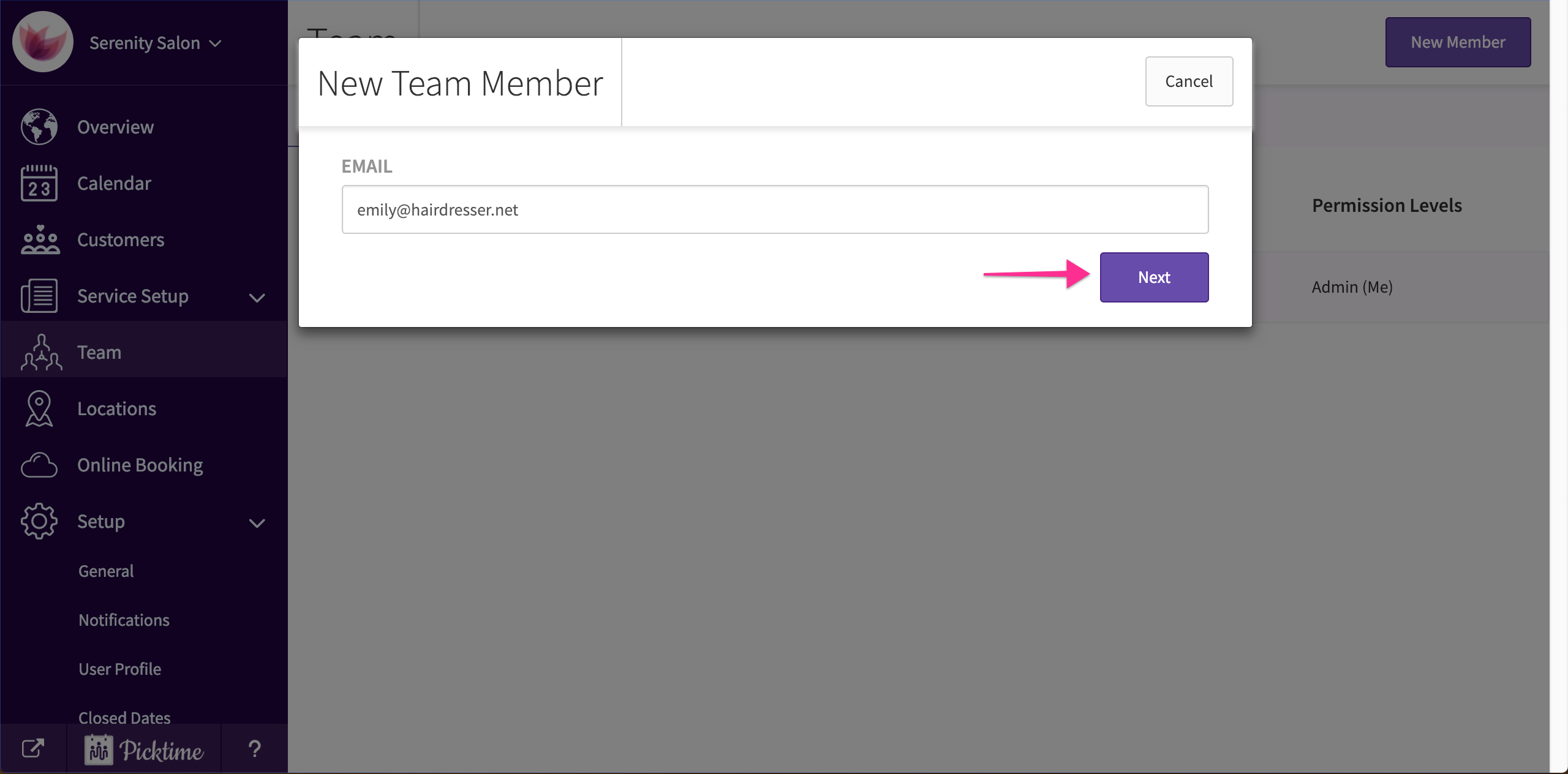
- You will see a ‘New Member’ pop-up.
- Fill in the details like Name, phone number, etc.
- Assign the Team Member to the services they provide and locations.
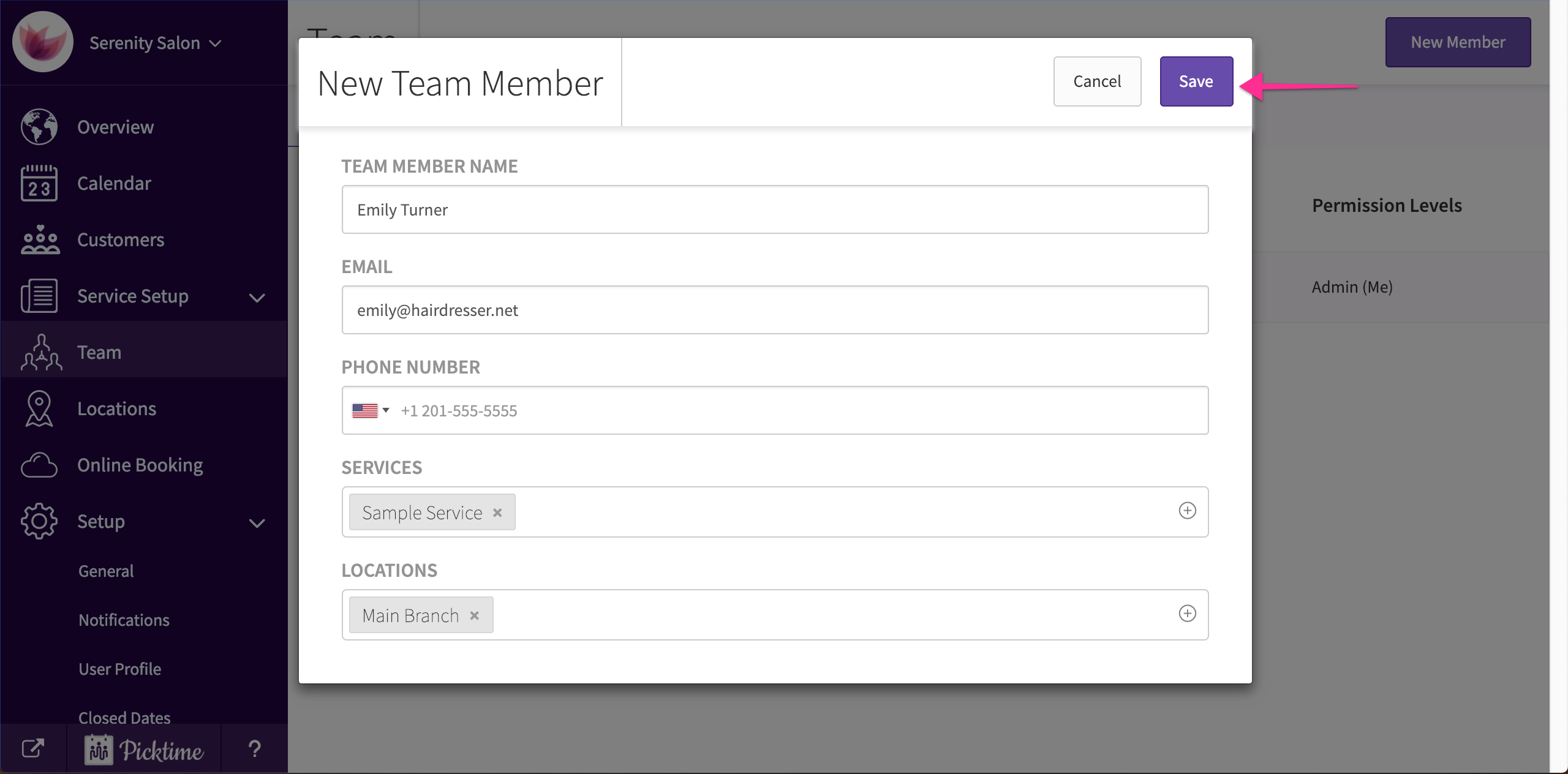
- Click on save and there you go, you have added a team member.
- Your team member will now be available in your booking page.
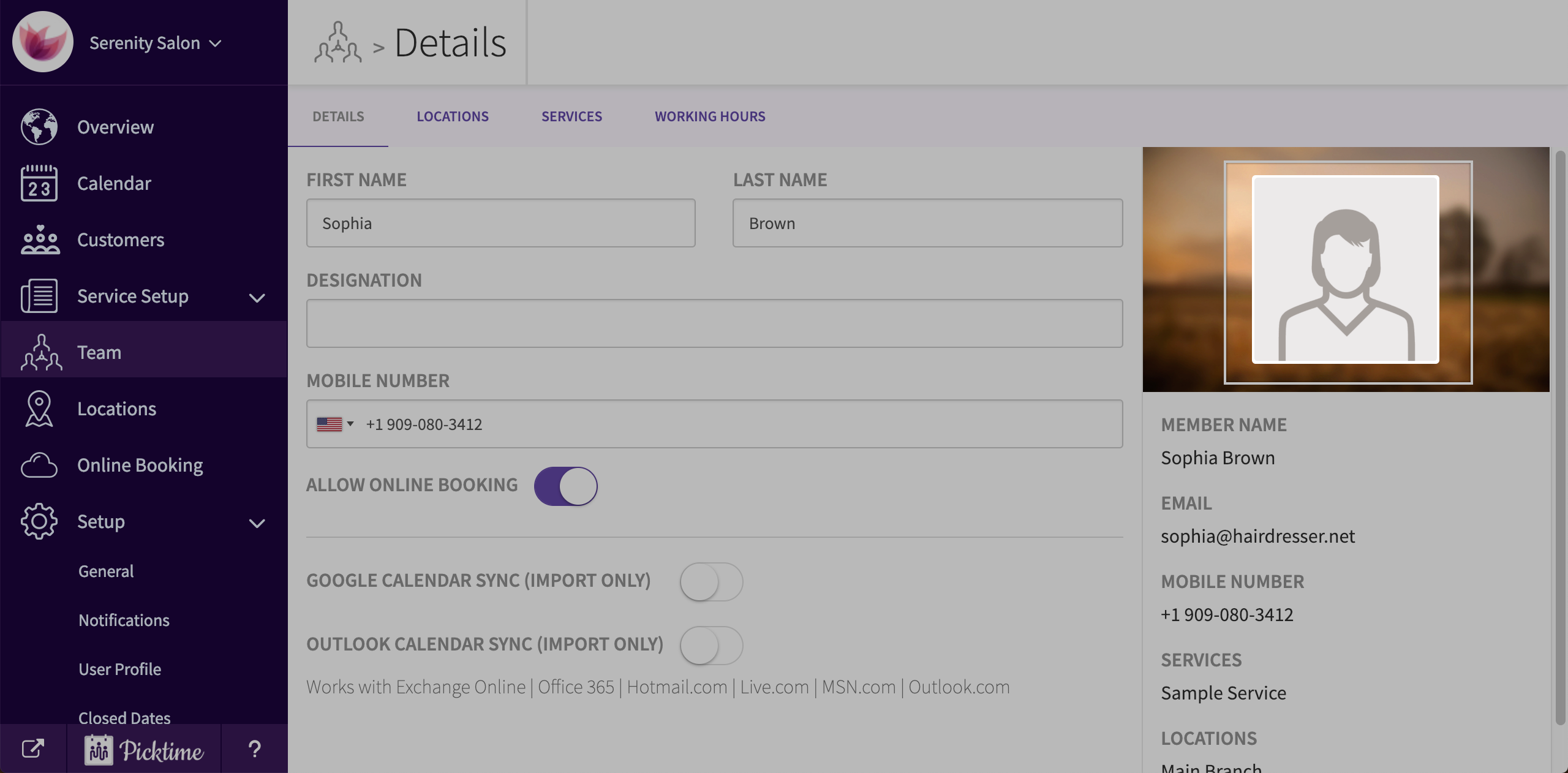
- To add more details like a display image etc, select the staff. You will see a side navigation with details.
- Your staff will be notified via email when added as a staff member.
Updated on: 04/03/2026
Thank you!