
How to enable Waitlist for Classes in Picktime
In the realm of class scheduling, the demand for popular sessions can often lead to fully booked slots, leaving eager participants disappointed. The good news is that with Picktime’s Pro plan you can have the Waitlist feature for classes. In this article, we'll explore how the Waitlist feature, included in the Classes, automatically springs into action when class slots reach full capacity.
- Navigate to Service Setup> Classes section
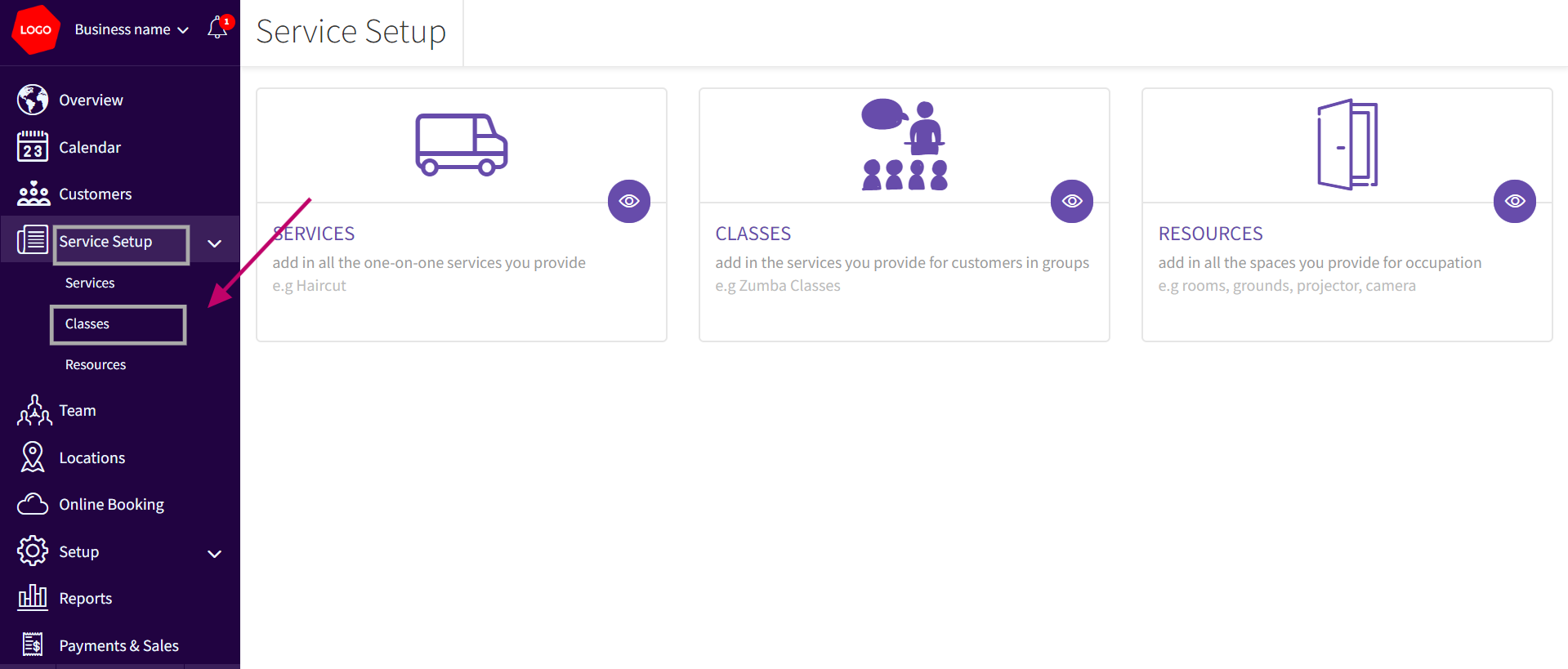
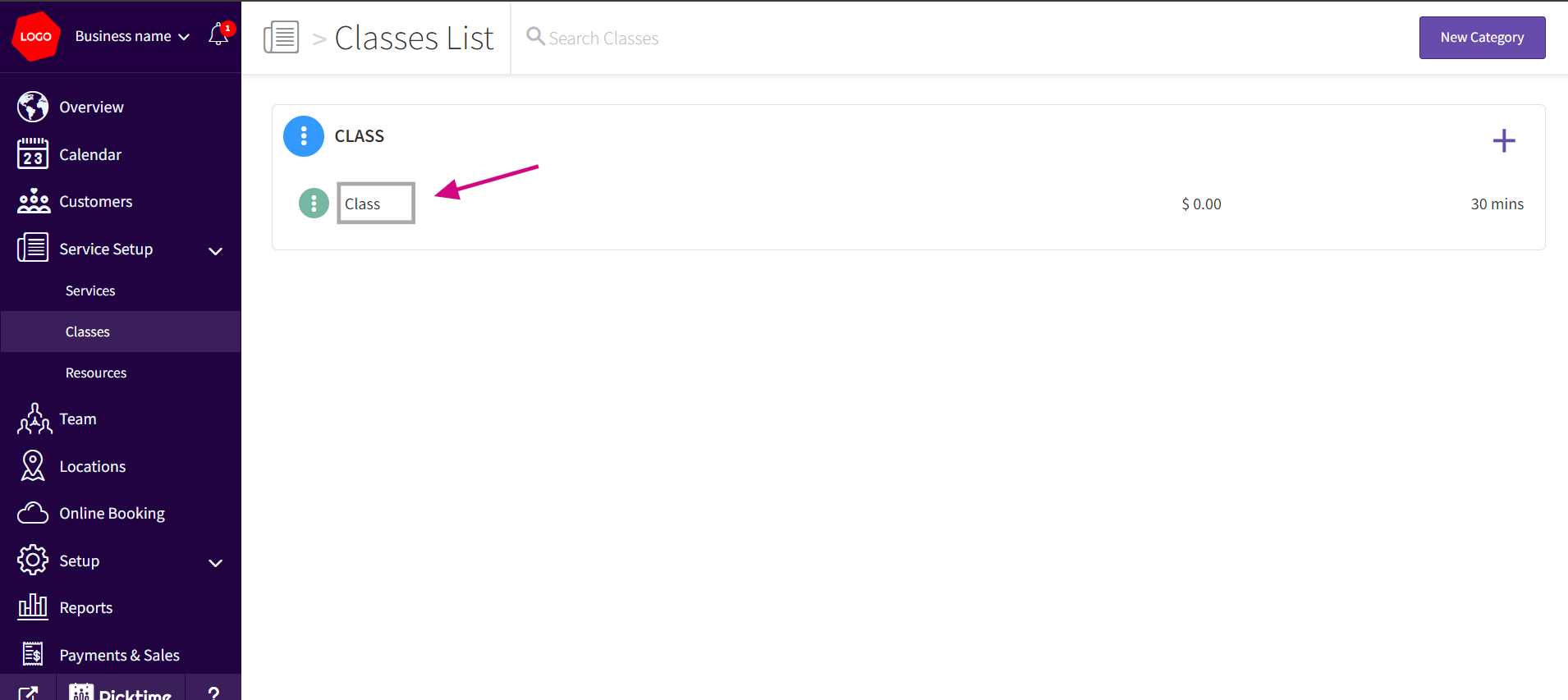
- Choose the class name for which you want to activate the Waitlist feature.
- Once you select the class name you find the Waitlist feature. Enable the feature by toggling the button to the 'On'. After enabling , you can view 2 options and you need to select between Fixed and Percentage Options
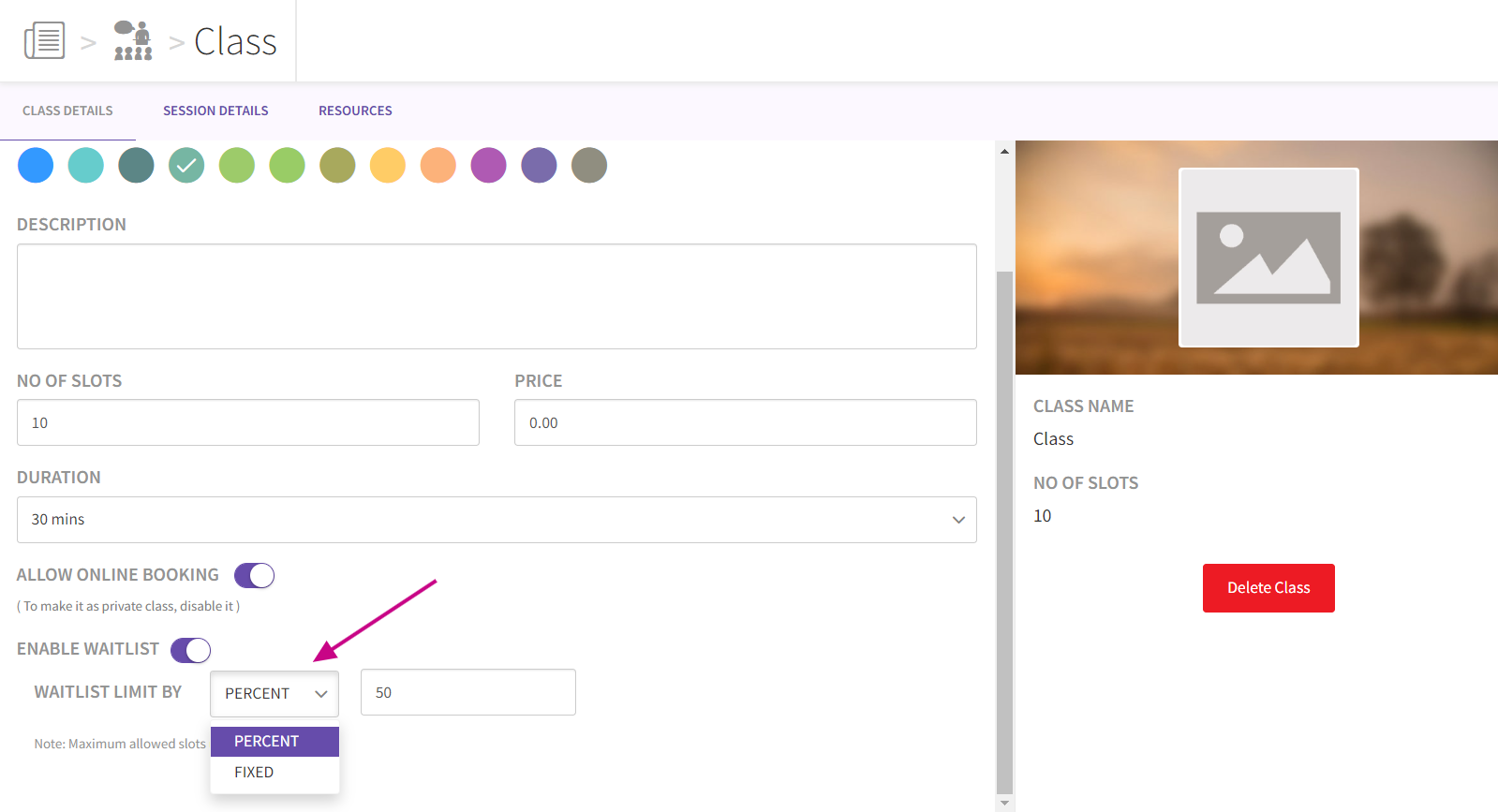
- If you select the 'Percentage' option and enter a value, such as '50,' in the text box. Illustrate that if there are 10 slots available, the system will calculate 50% of this value (5 slots) and set the limit accordingly. Waitlist will be enabled automatically once the 10 slots are filled.
- If you select the Fixed option, enter a value, like '50,' in the text box. Unlike the 'Percentage' option, the limit here is set to the specified number, regardless of the total available slots.
Example: If you opt for the 'Fixed' option and enter '50' in the text box, the limit will be set to 50 slots, irrespective of the total number of available slots.
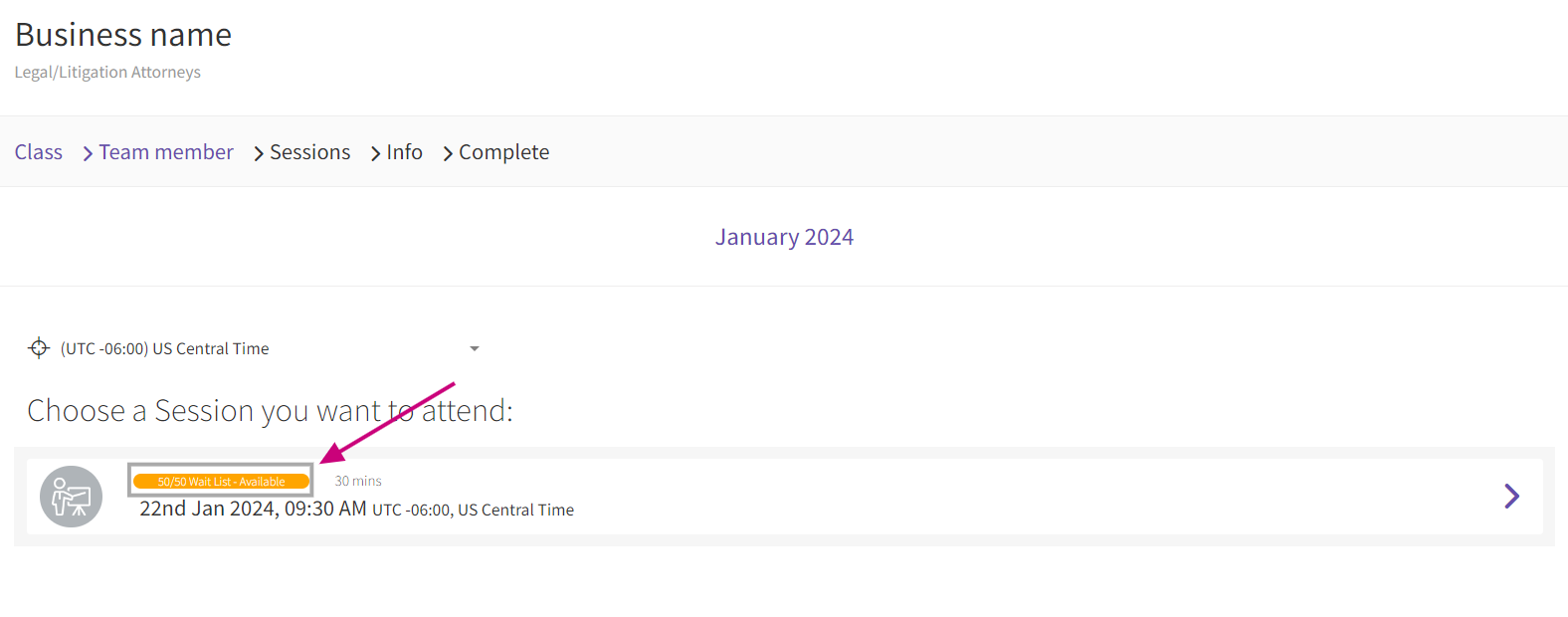
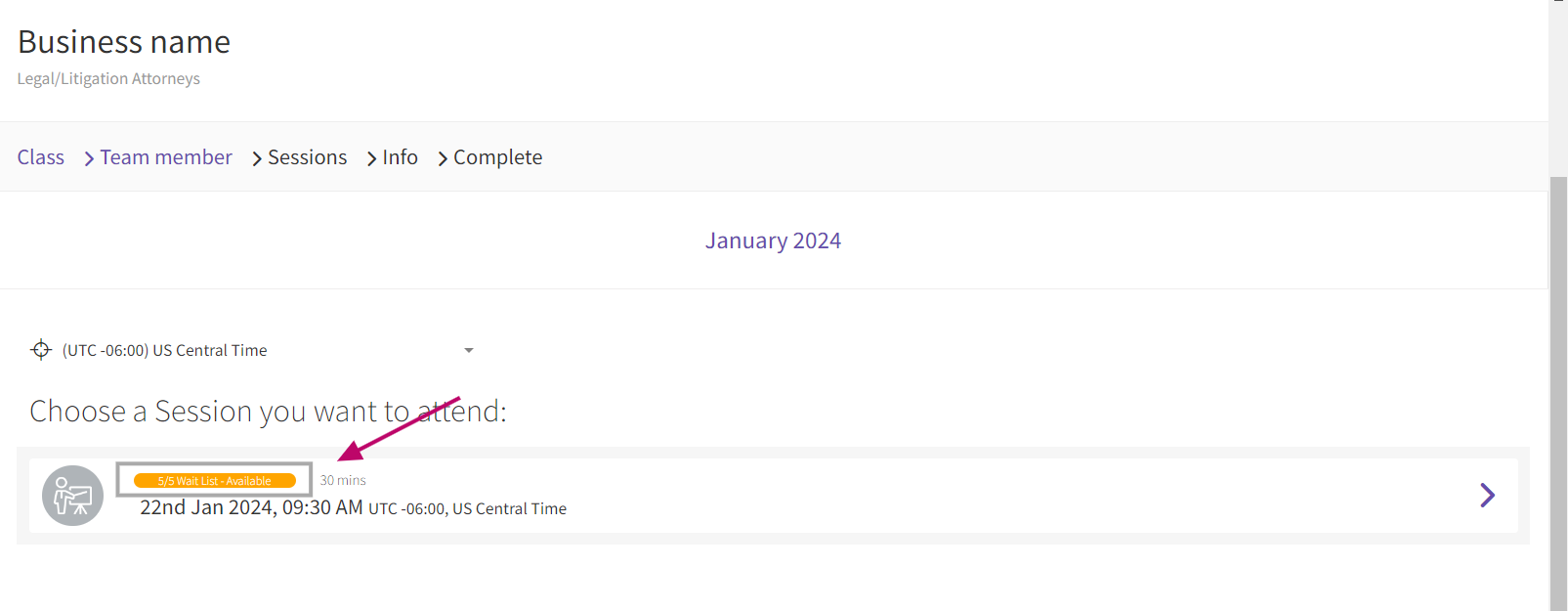
- Please be note that if you enable the waitlist feature, once the slots are filled, the waitlist will automatically appear on the booking page, the attendee on the waitlist will automatically be moved into the confirmed attendee list
Updated on: 06/03/2026
Thank you!