
How to Update Picktime Personal User Email address
- Access User Profile:
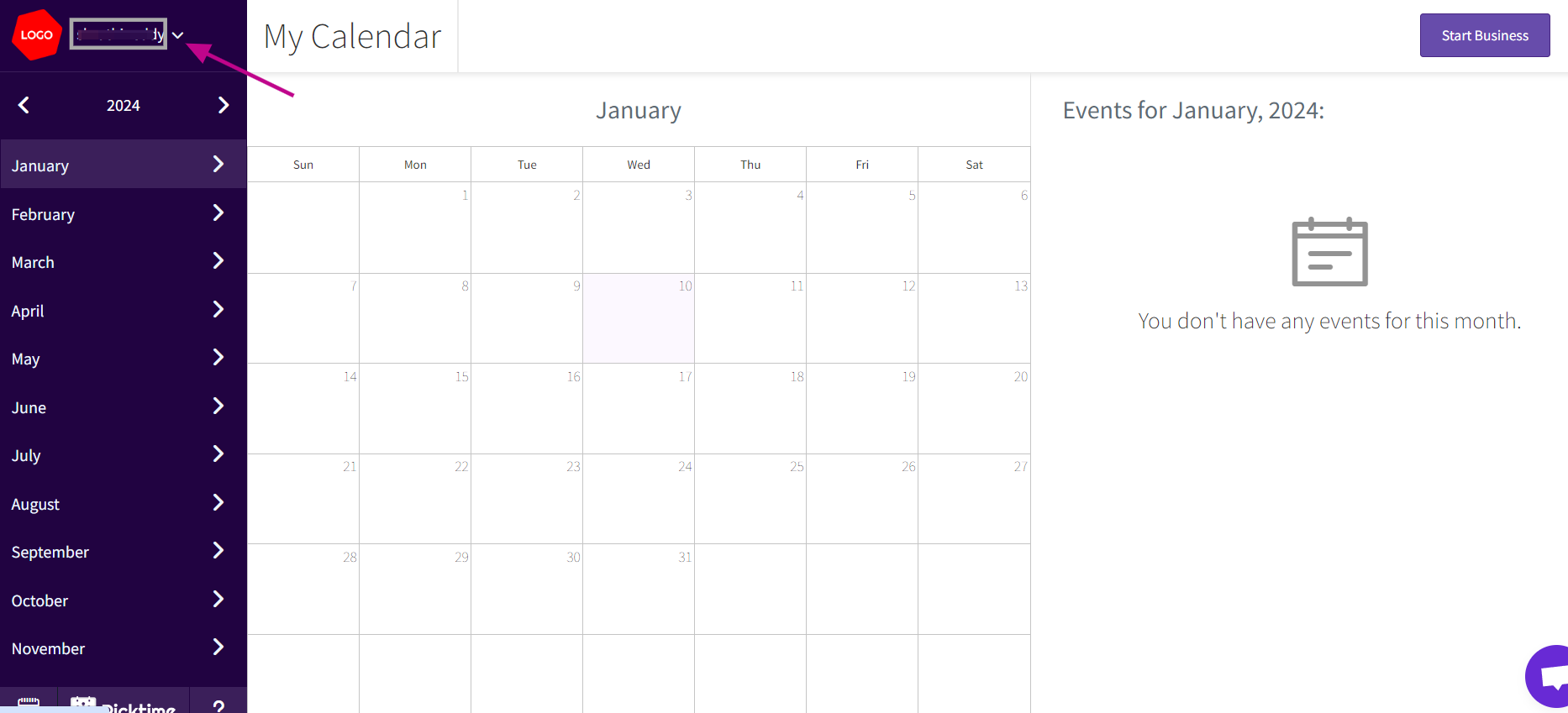
Go to the Picktime website and log in to your personal account using your current email address and password. After logging in, click on the drop-down arrow next to your name, usually located in the top left corner of the page.
- Navigate to Email ID:
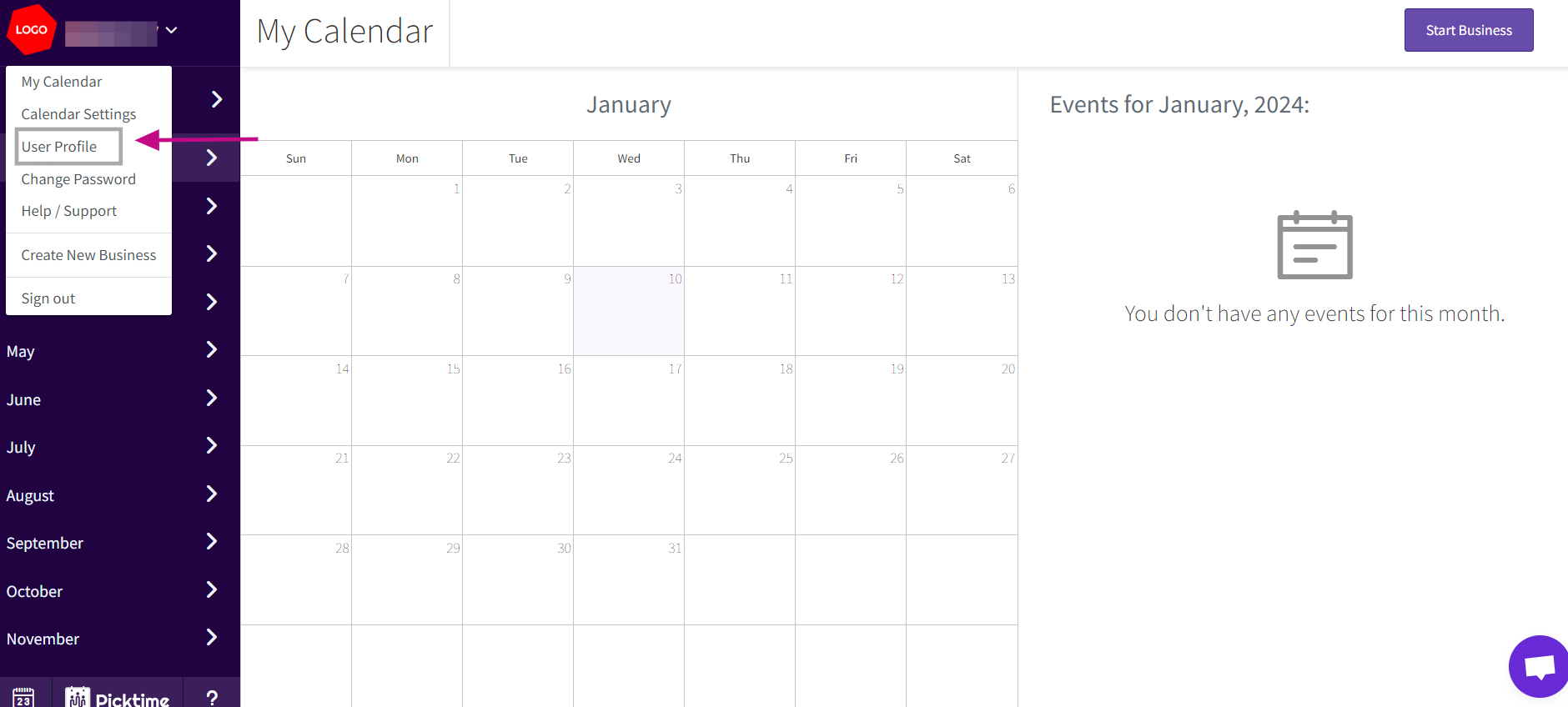
From the dropdown menu, select "User Profile"
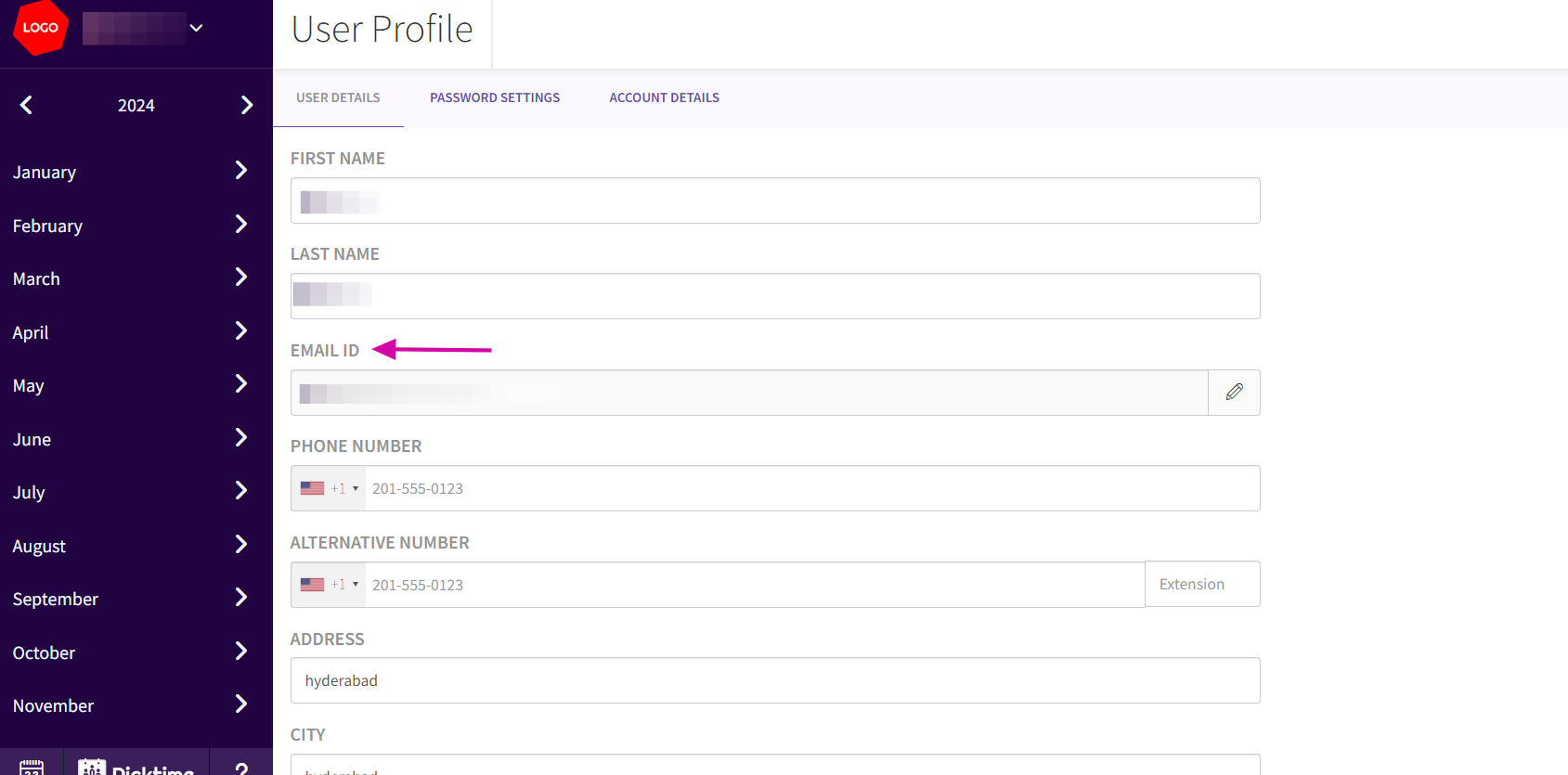
- Once in the User Profile section, identify the 'EMAIL ID' field. This is where you will enter your new email address.
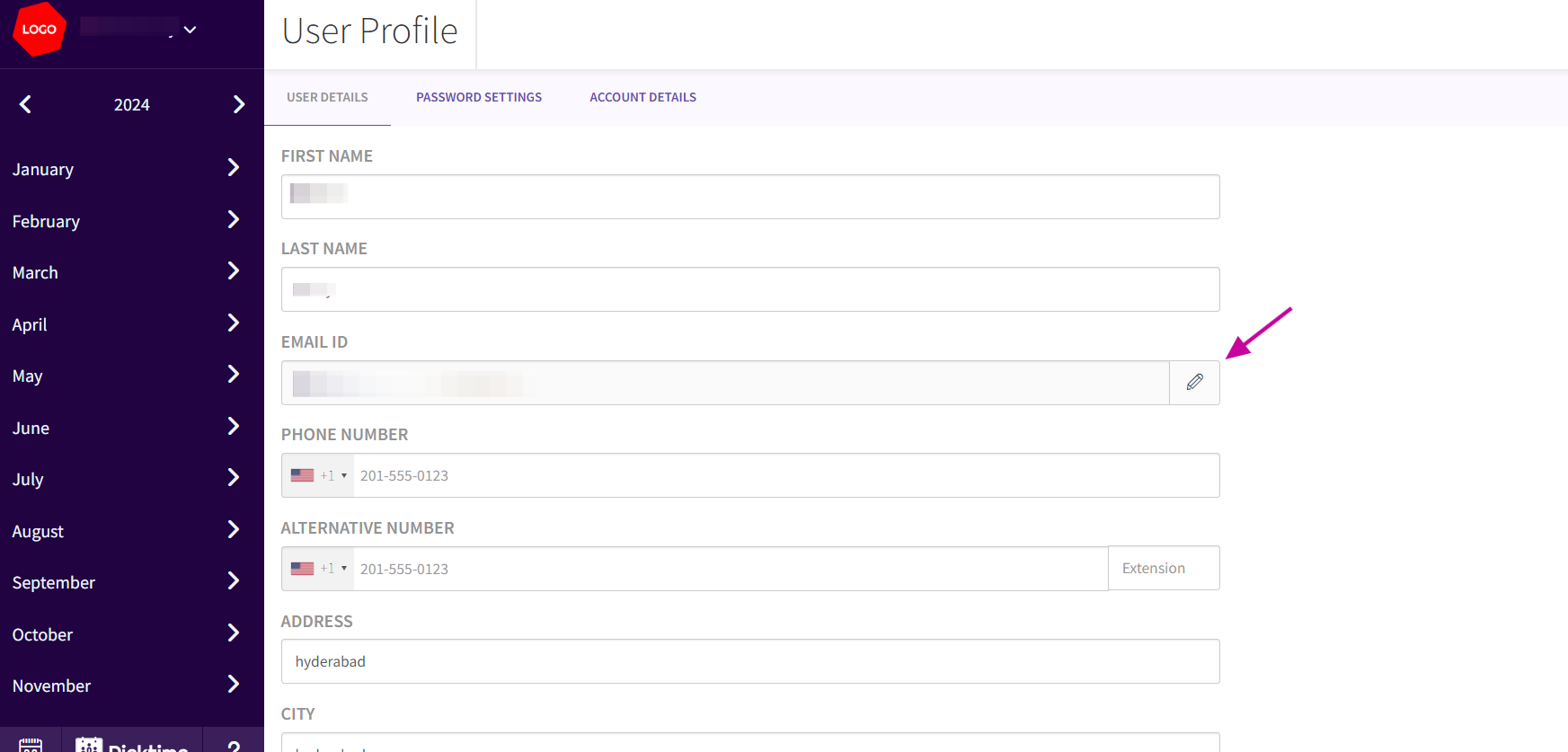
- In the EMAIL ID field, input the new email address that you want to update by clicking Edit option ( pencil icon ) . Ensure that this email is not already registered as an Admin, Team member, or customer in any Picktime business.
- Verify the Email Address:
After entering the new email address, Picktime will initiate a verification process. A passcode will be sent to the email address you provided.
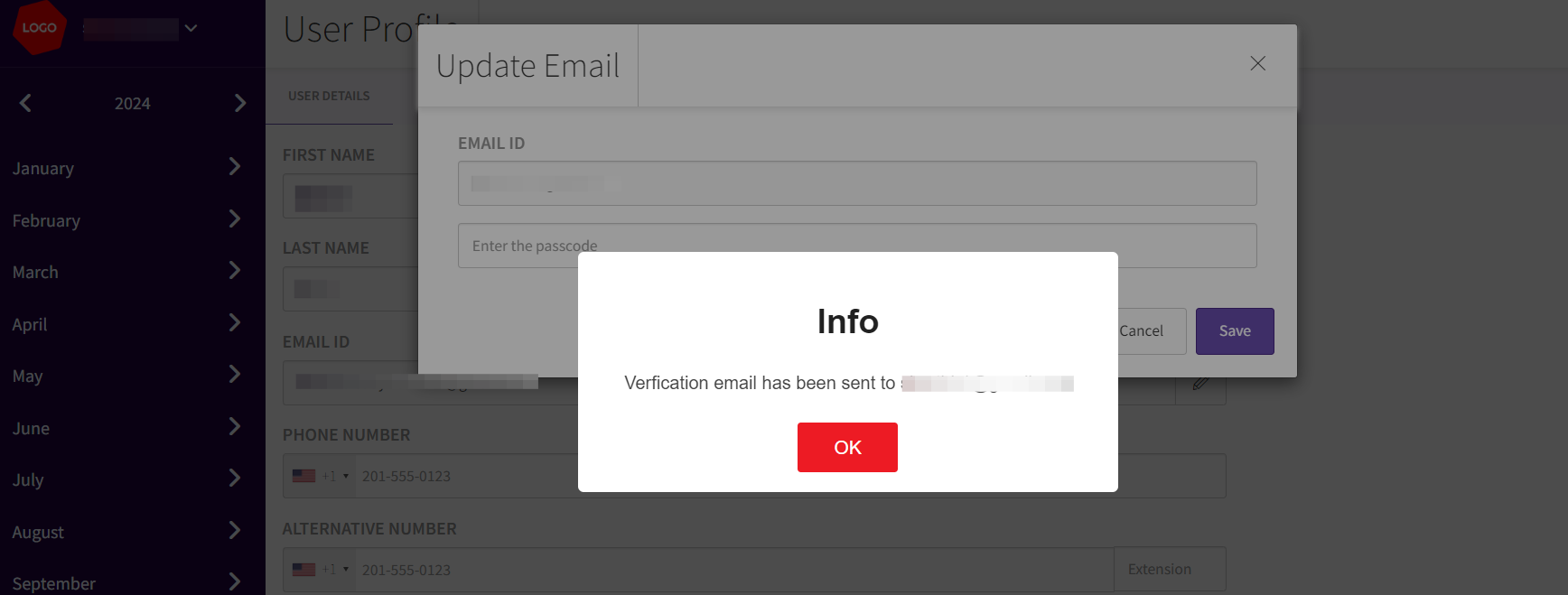
- Check and Enter Passcode.
Check your new email address for the passcode sent by Picktime.
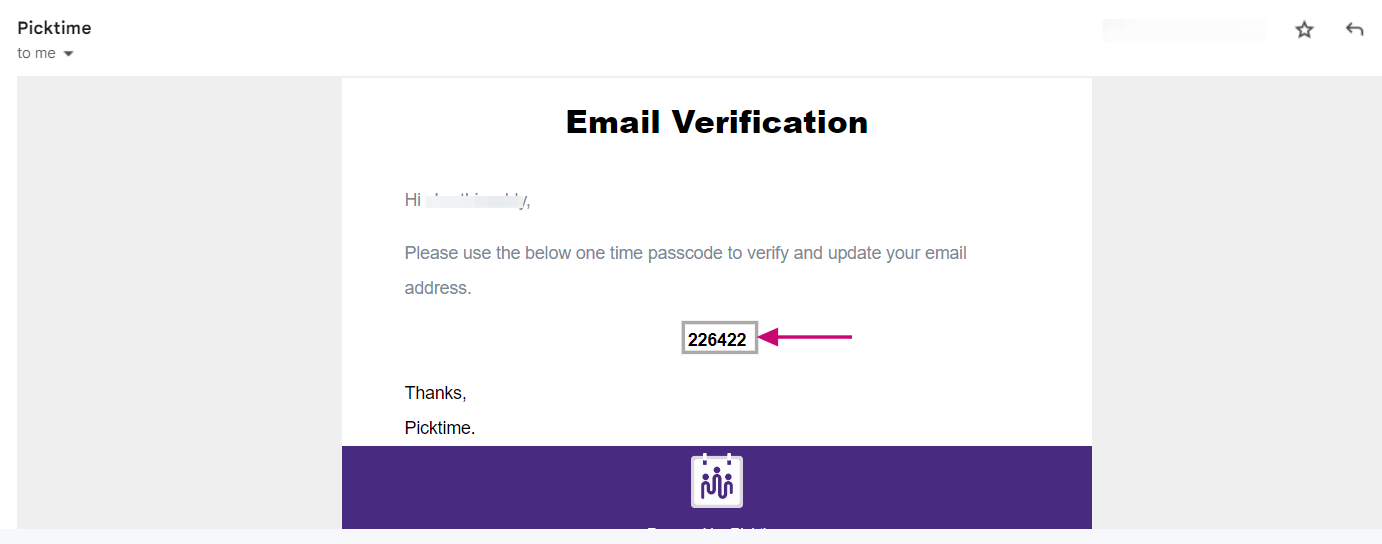
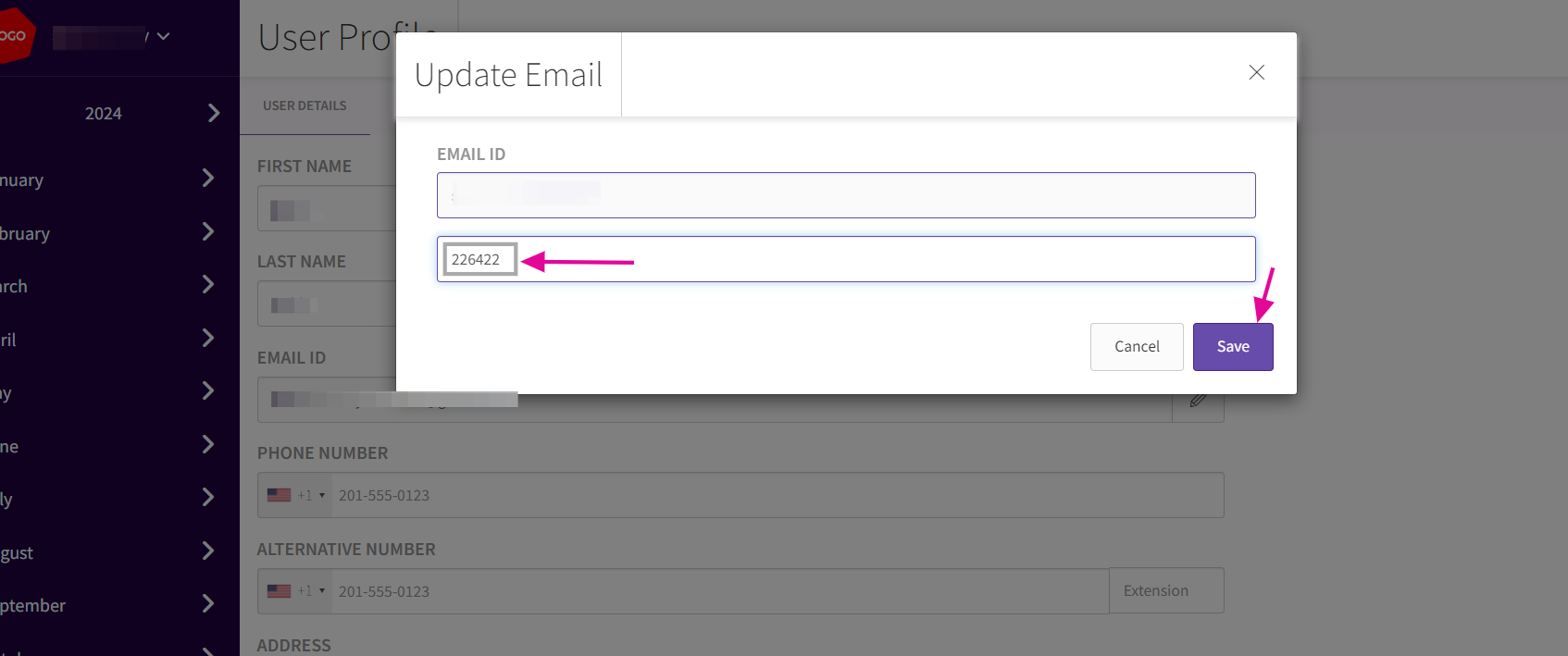
Enter the passcode in the provided space.
- Automatic Update of the email address:
After verifying the new email address, save the changes by clicking on the "Save" button.
Updated on: 06/03/2026
Thank you!