
How to Verify Customer Email Address from Admin End?
How to Verify Customer Email Addresses for Viewing Appointments in Picktime Personal Calendar
Ensuring a seamless experience for both admins and customers is essential for effective appointment management. This support article guides you through the process of verifying customer email addresses in Picktime, allowing customers to view their appointments in their personal calendar.
Verifying Customer Email Address from Admin End:
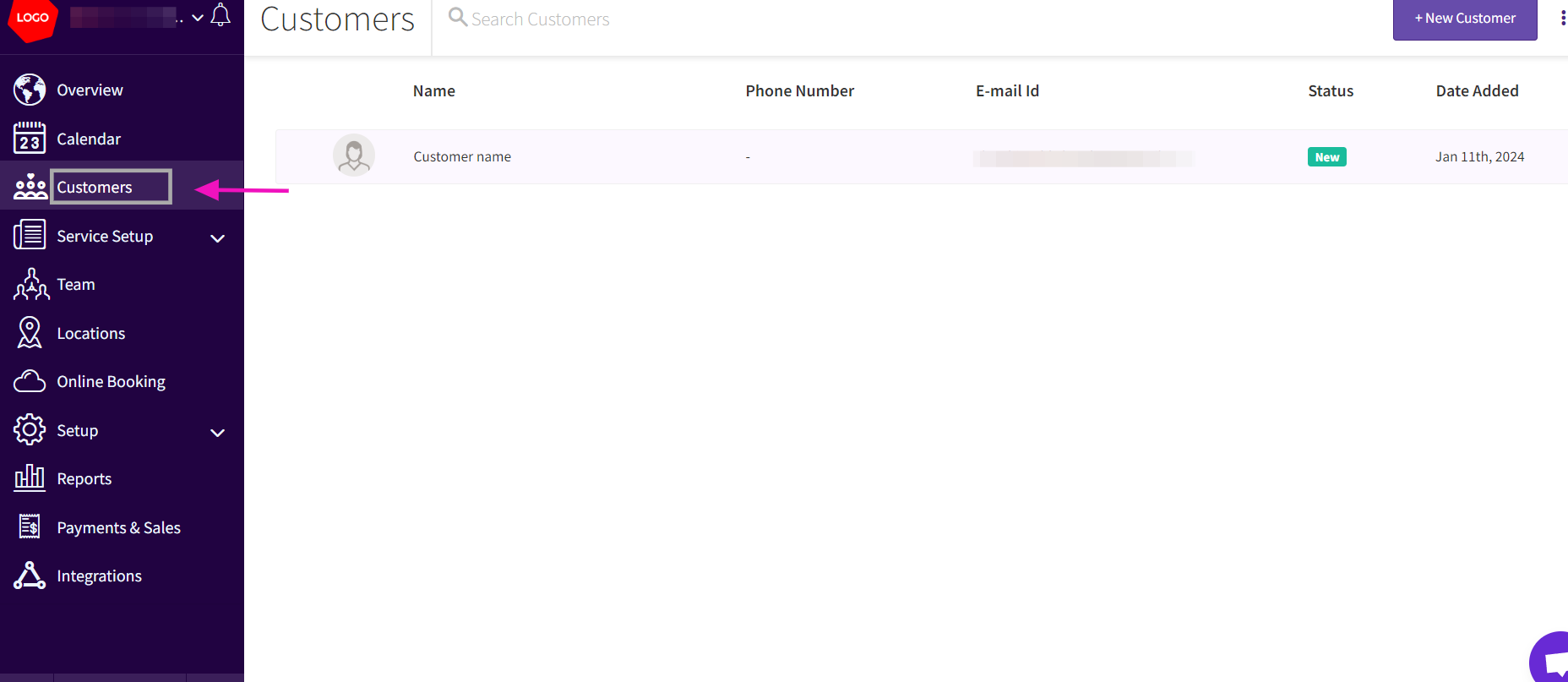
- Log in to your admin account on Picktime and navigate to the "Customers" tab.
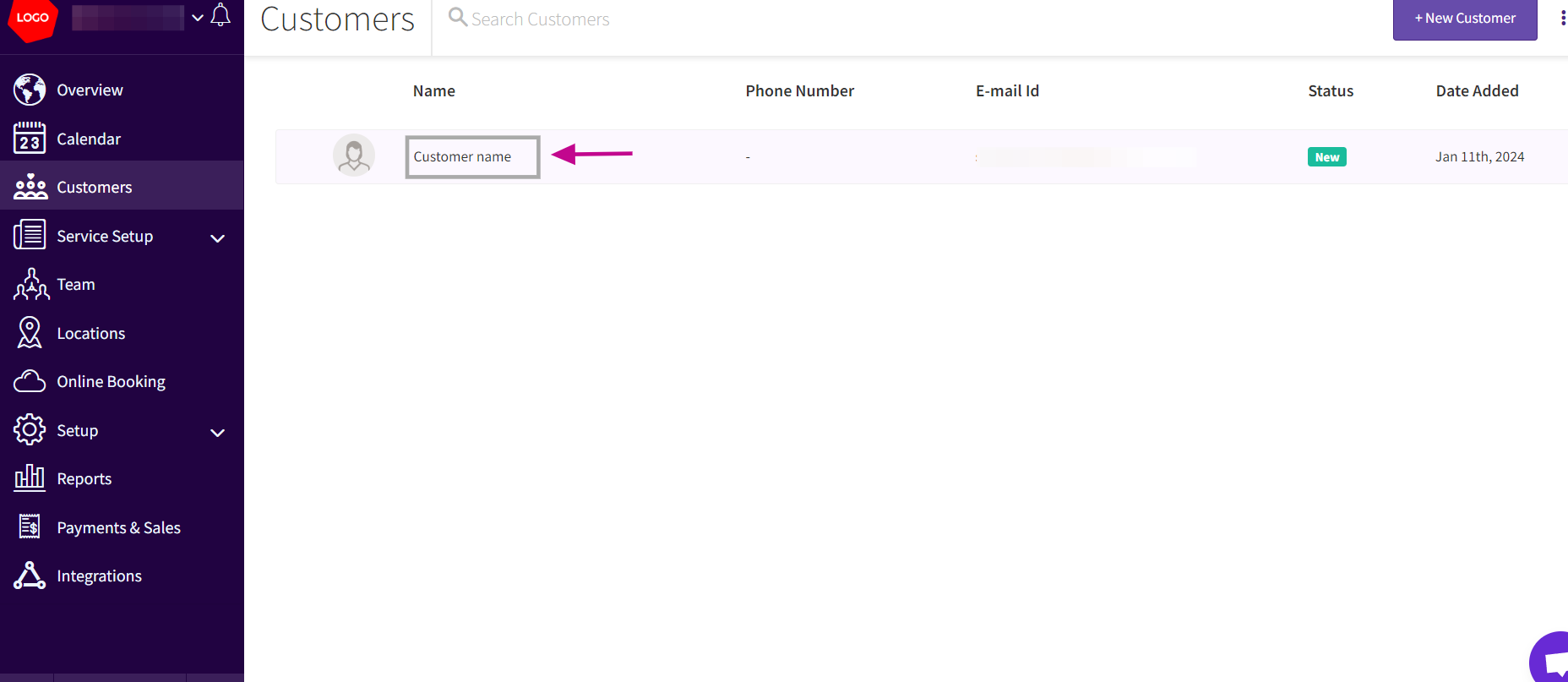
- Select the customer for whom you want to verify the email address.
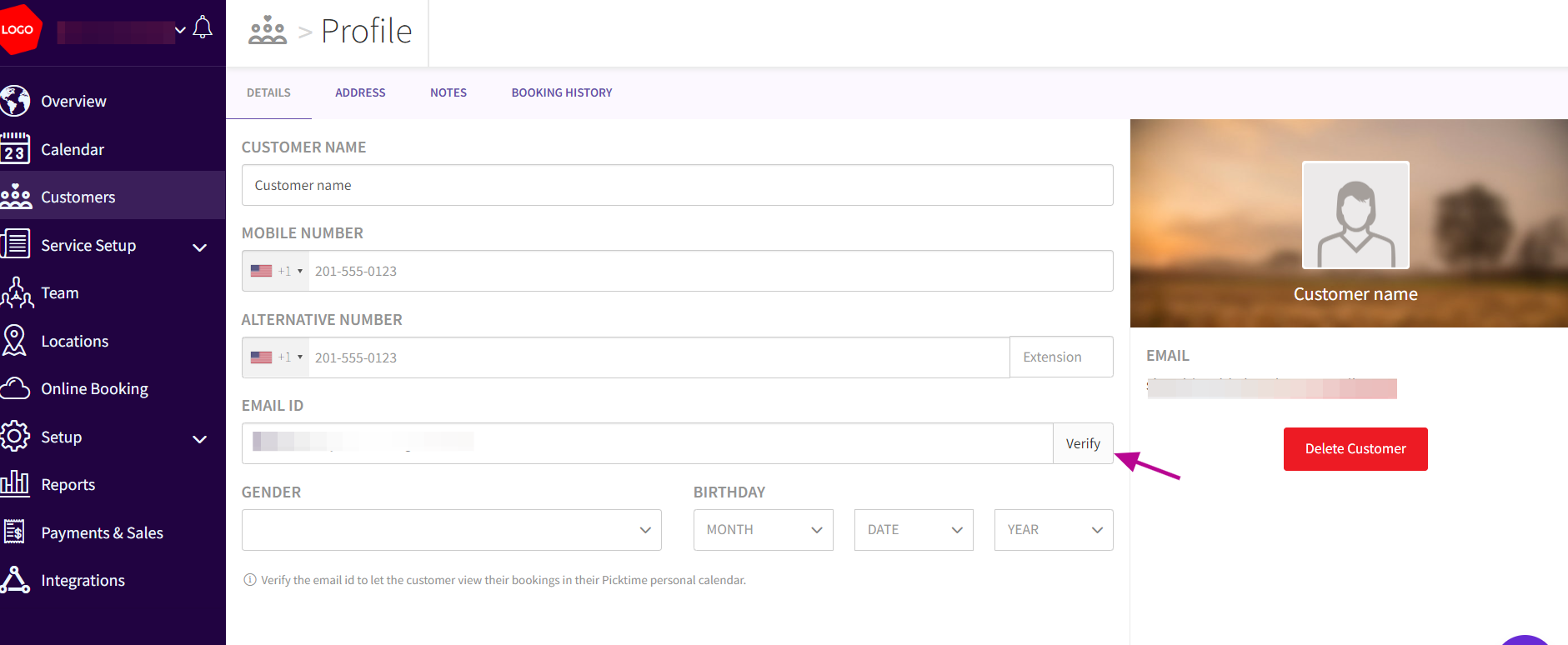
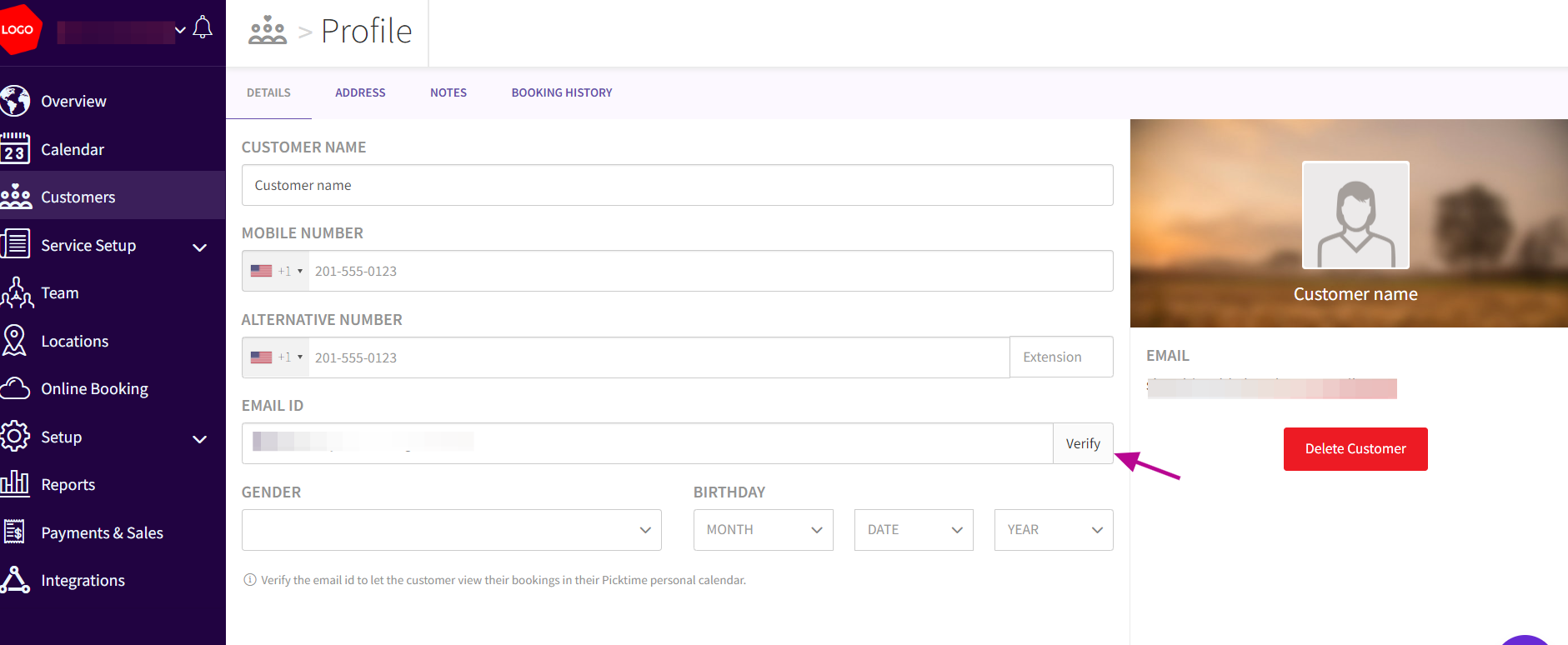
- Locate the "Verify" button beside the Email text field and click on it.
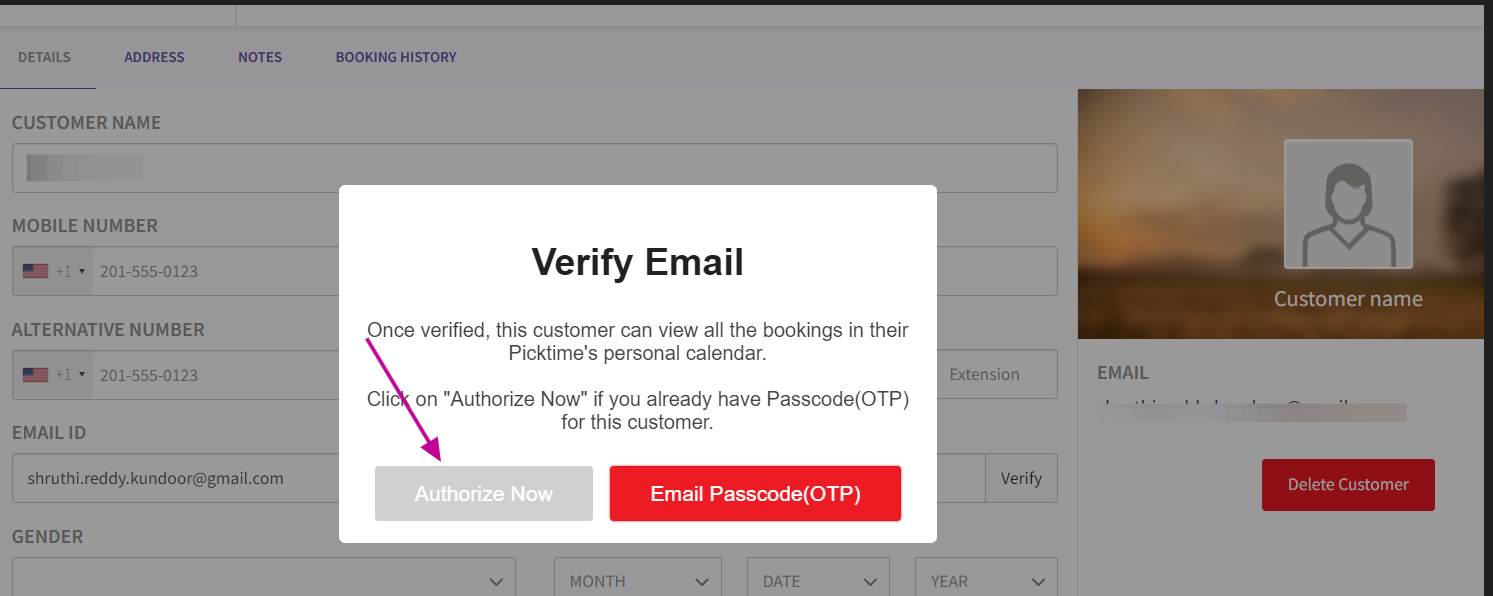
- A popup for email verification will appear. Click "Email Passcode(OTP)".
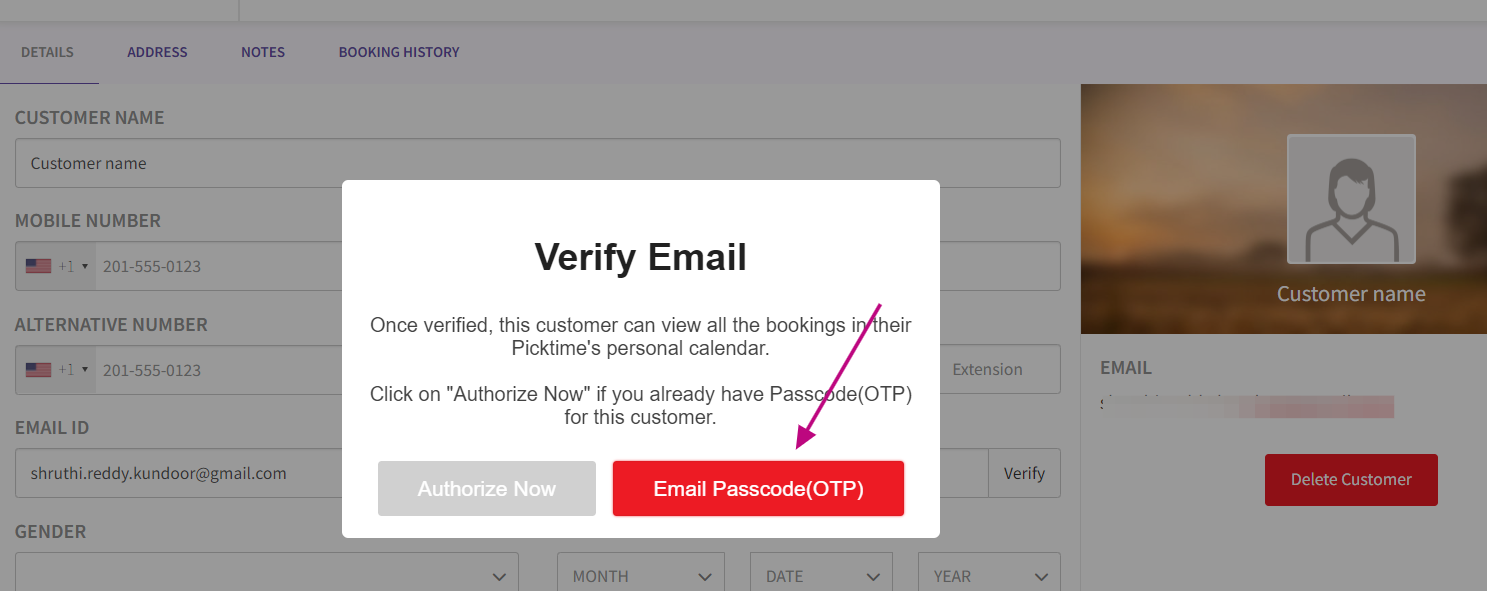
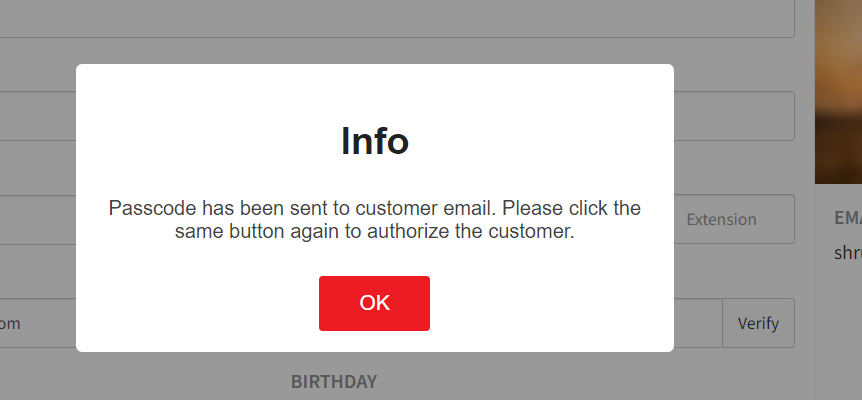
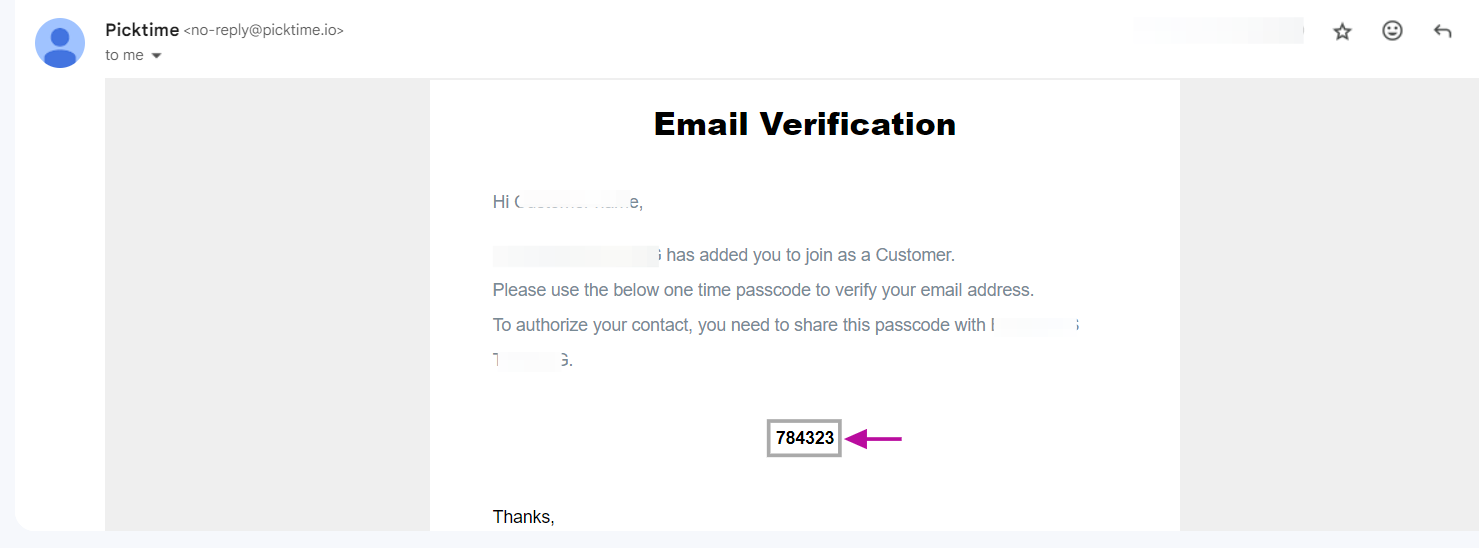
- The customer receives the Passcode and collect the Passcode from the customer.
- Re-click the "Verify" button to proceed with the authorization. Click "Authorize Now" to initiate the process.
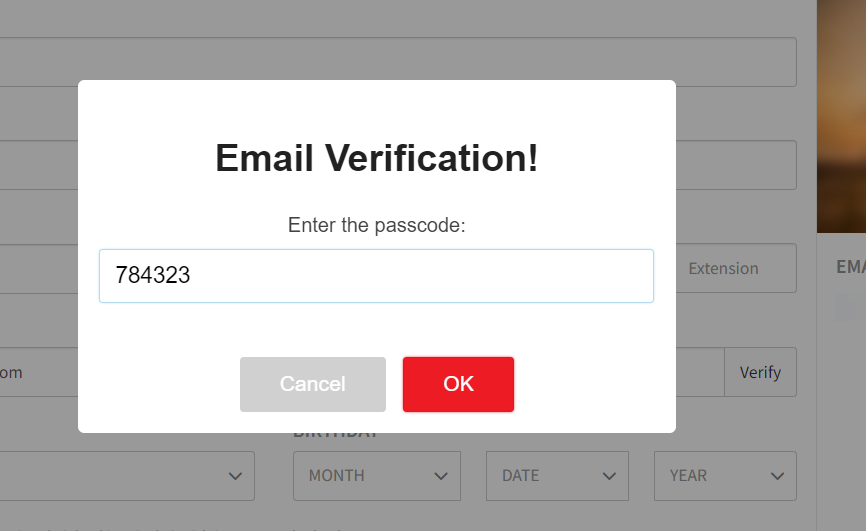
- Completion of Verification: After entering passcode, click ok then verification process will be successful
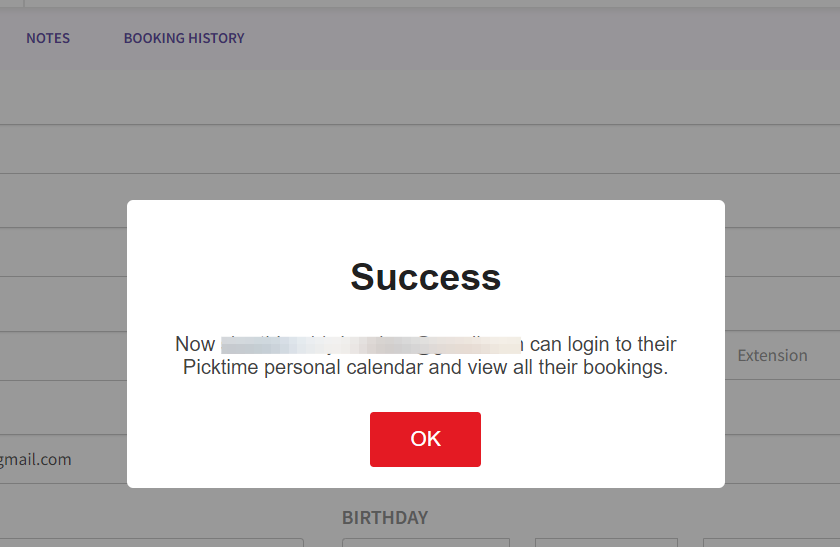
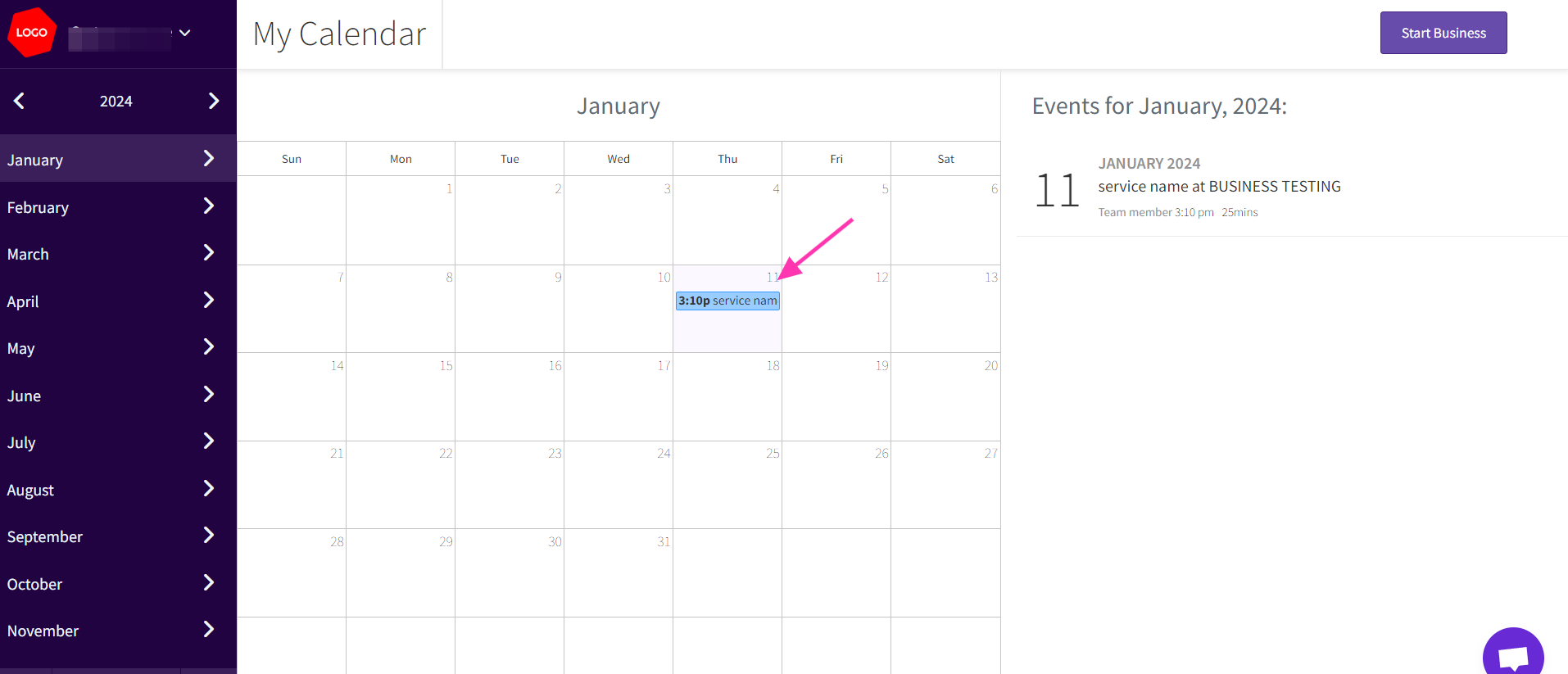
- Now, the customer can login into their Picktime personal calendar and now will be able to view the appointment in their Picktime personal calendar.
Updated on: 06/03/2026
Thank you!