
How to bulk delete customer contacts in Picktime?
Do you want to bulk delete your customer contacts at once? You can bulk delete your contacts by selecting the "Bulk Delete" option in the Customer section. This will remove all of your selected contacts from your Customer list.
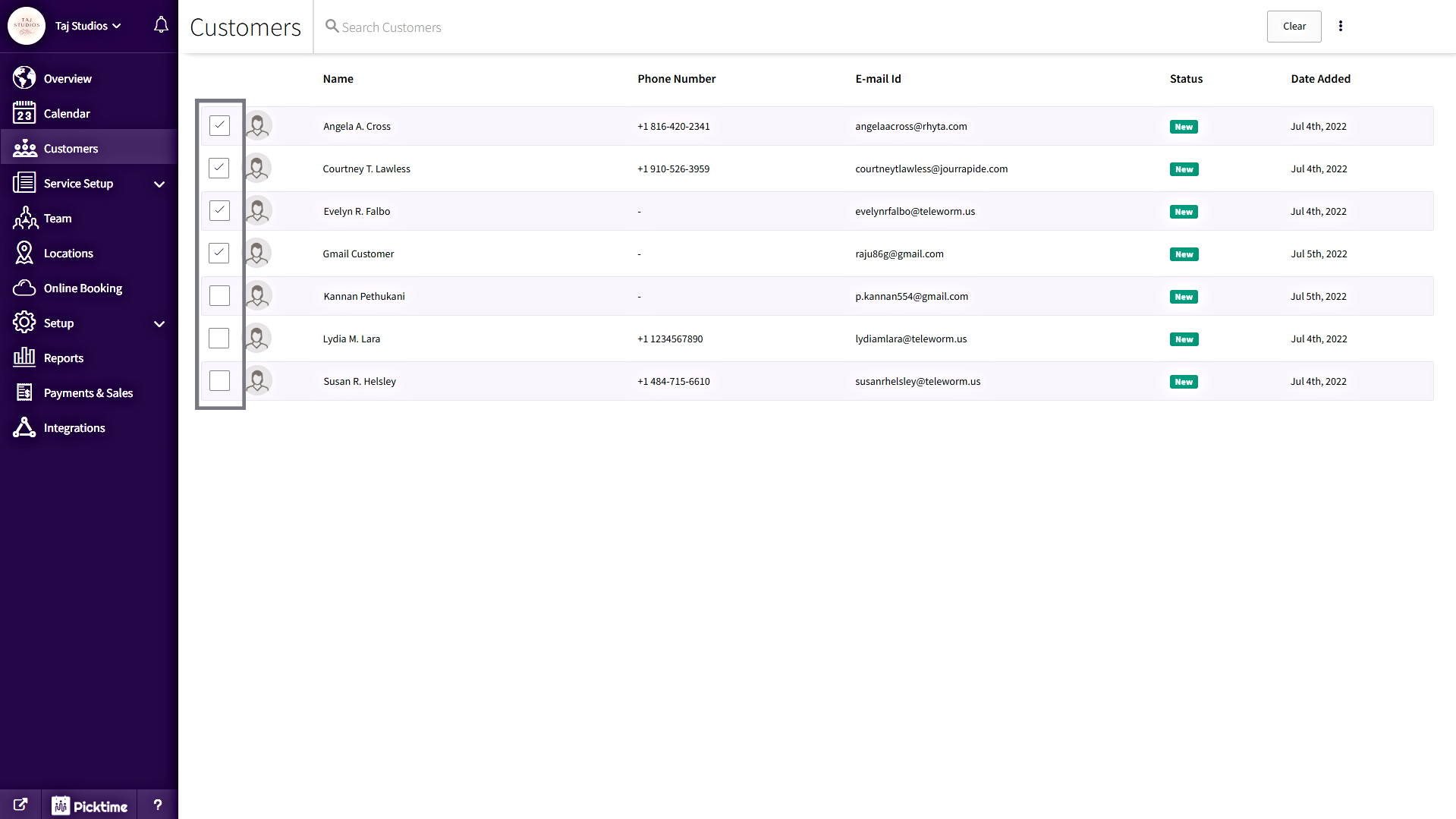
- Go to the Customers tab in the side navigation, and select the checkboxes of the contacts to delete them.
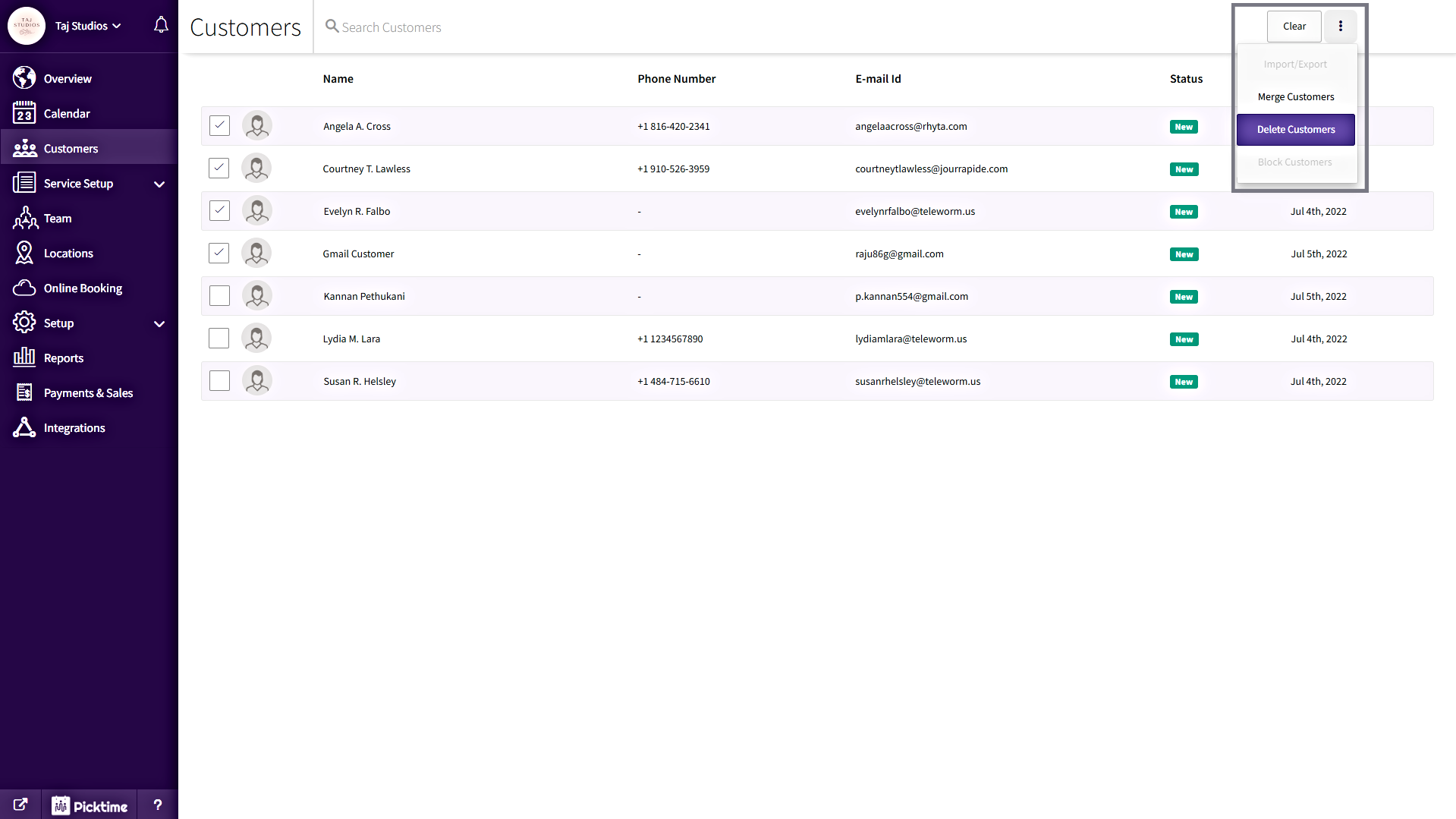
- Now, click on the three vertical dots at the top right corner, then click on the “Delete Customers” option from the drop-down menu.
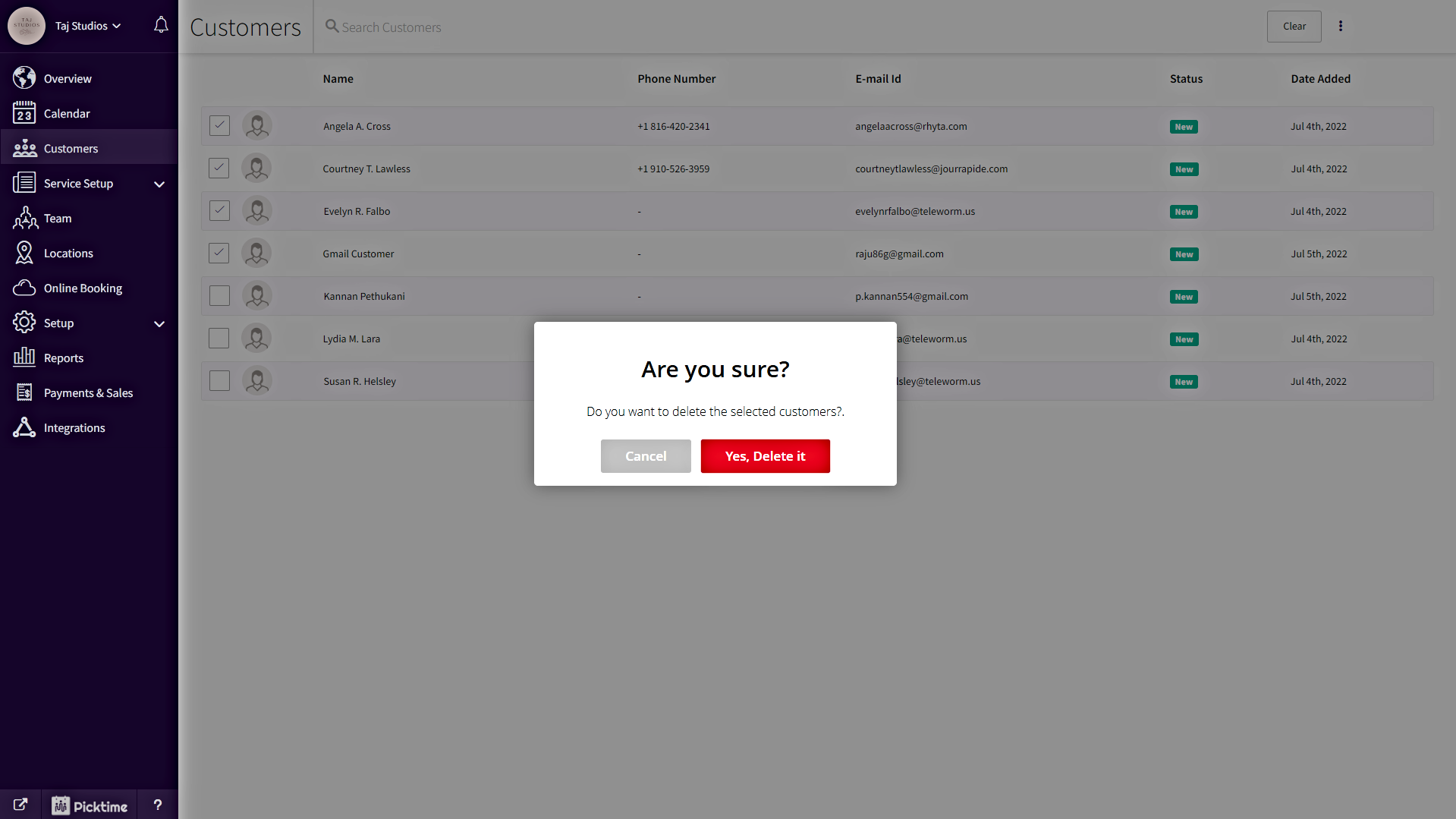
- In the Confirmation pop-up, click the “Yes, Delete it” button to delete all the selected customer contacts.
Updated on: 04/03/2026
Thank you!