
How to Enable Off Hours Bookings?
With Picktime, you have the flexibility to book and manage appointments outside of regular working hours.
To enable Off Hours Bookings;
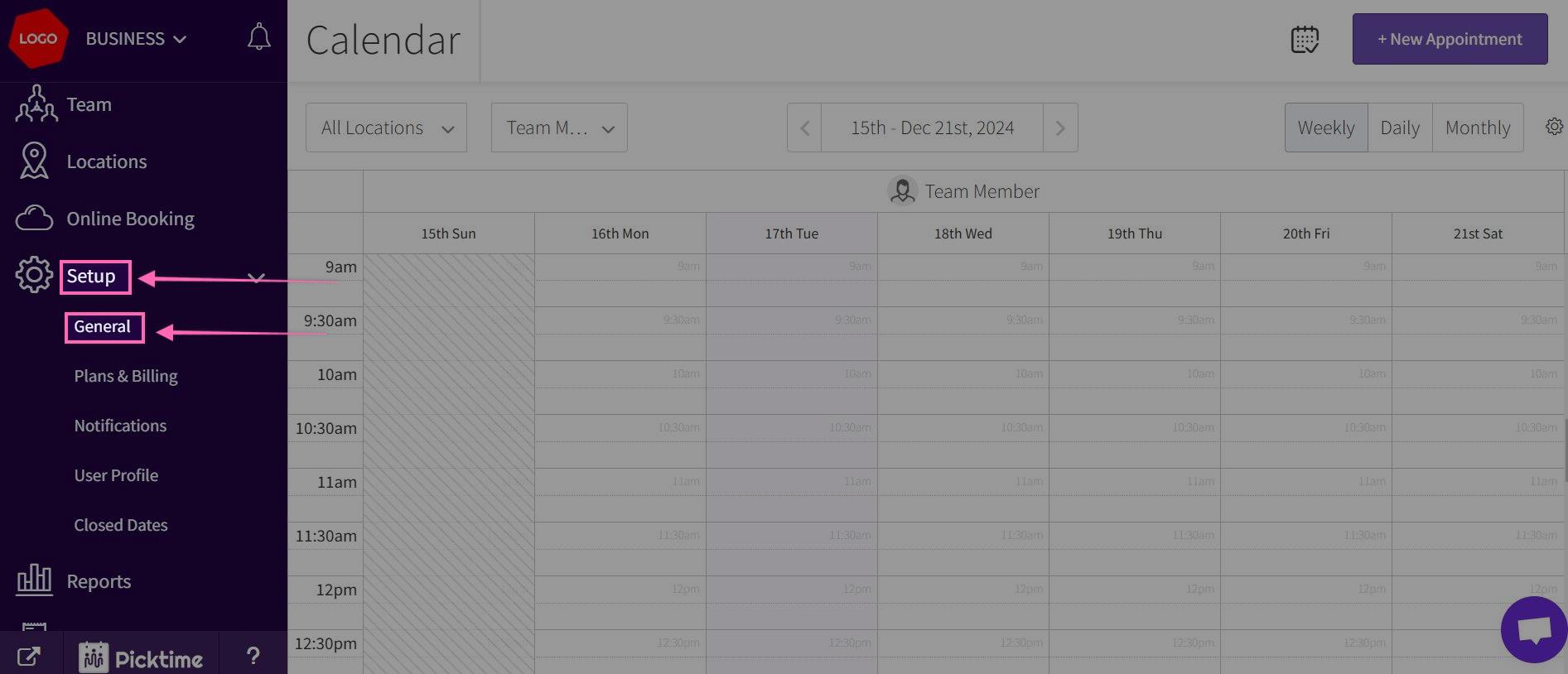
- On the left side navigation Click on Setup>>General.
- Click on Calendar Preferences at the top menu. Scroll down and toggle on the switch next to Allow Overlap Bookings, and Click Save to apply the changes.
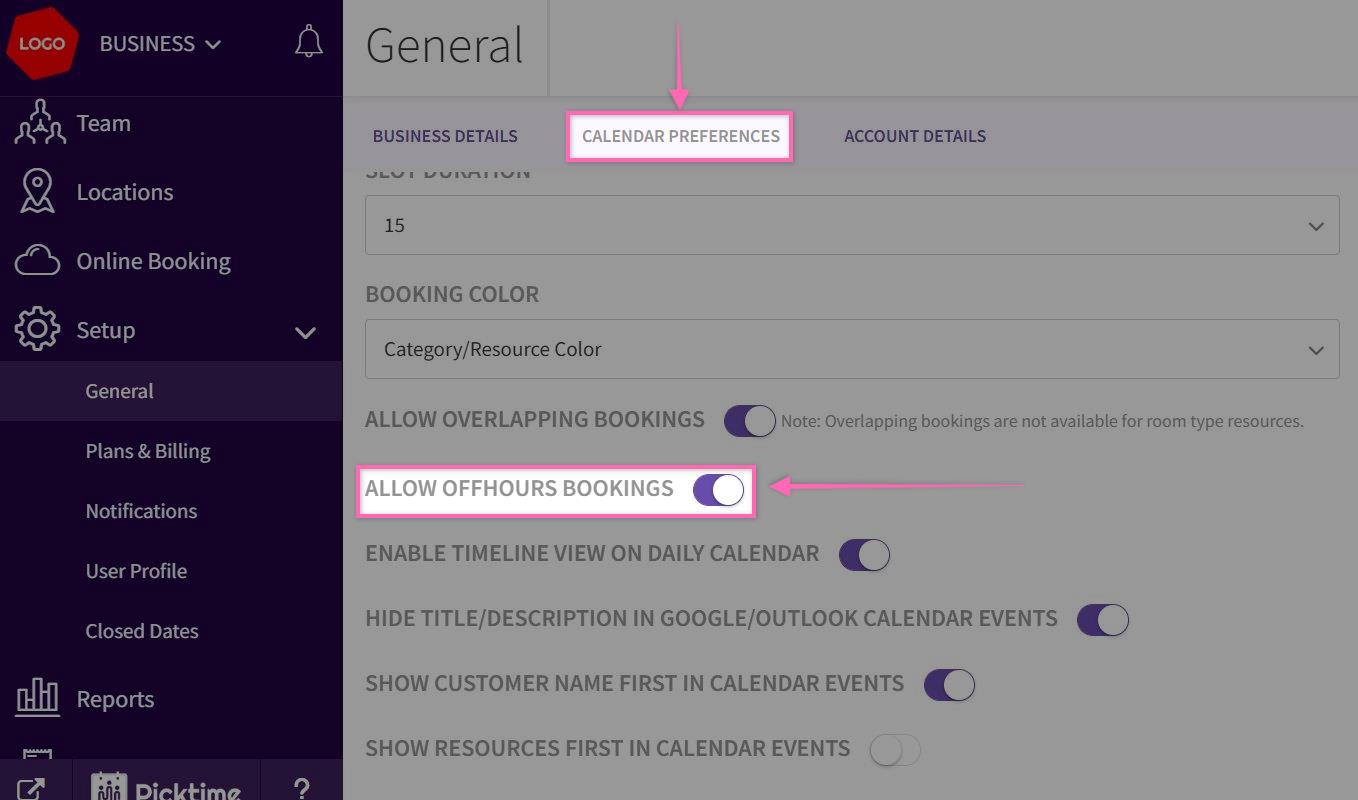
- After completing these steps, your team members can book appointments beyond the working hours from the dashboard calendar.
Note: By enabling Off Hours Bookings feature, off hours slots will not be available for the customers to book from from the booking page
Updated on: 04/03/2026
Thank you!