
How to enable Overlap Bookings in Picktime?
Overlap booking allows you to schedule multiple appointments during the same time period, which can help you maximize your time and resources. Overlap booking can help you increase your revenue by allowing you to book more appointments within a given time period.
To enable Overlap Bookings in Picktime, please follow these steps:
- Log in to your Picktime account.
- Click on "Setup" in the left-hand navigation menu.
- Select "General" from the submenu.
- Click on "Calendar Preferences" at the top menu
- Scroll down and toggle on the switch next to "Allow Overlap Bookings."
- Click "Save" to apply the changes.
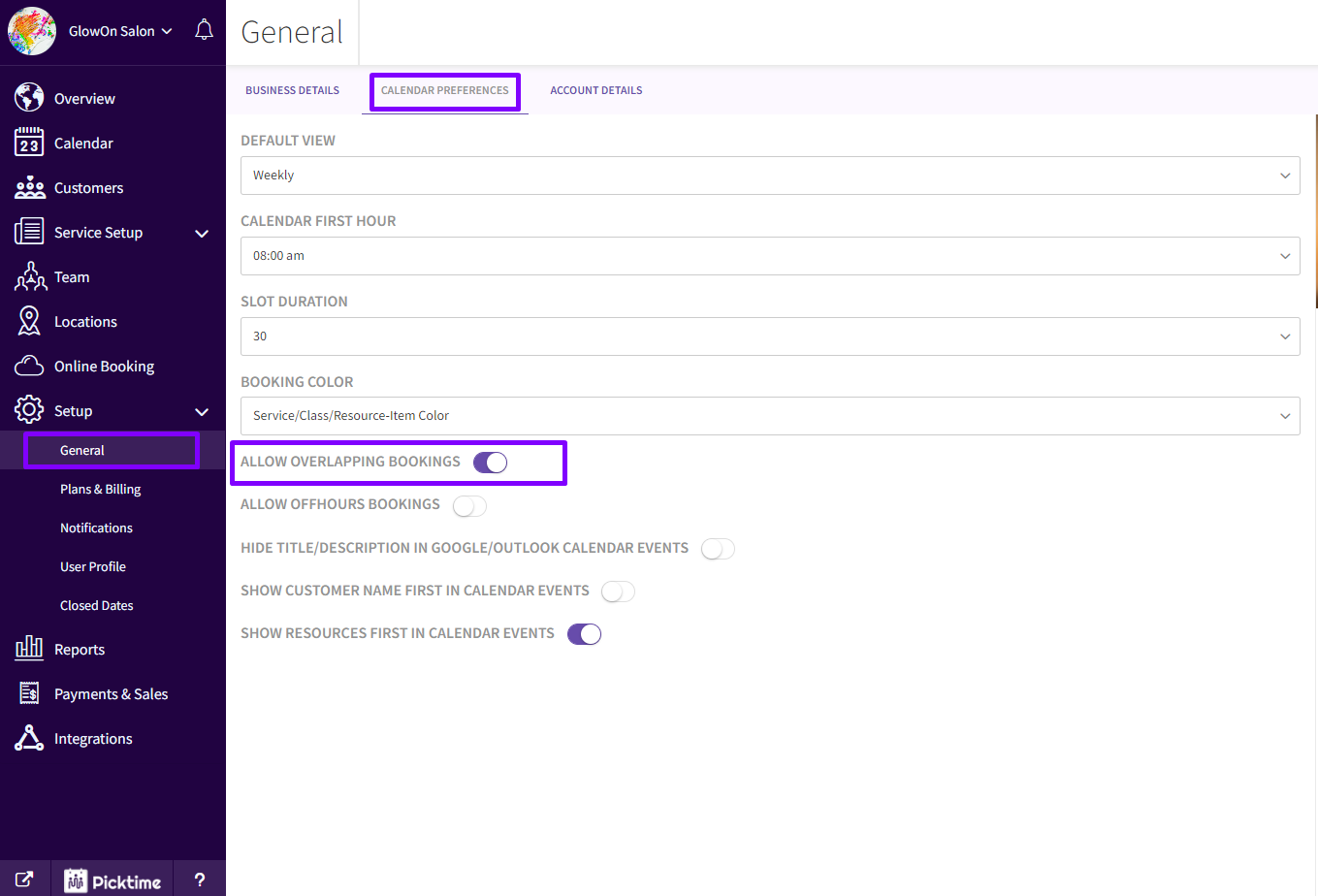
After completing these steps, your team members can book appointments that overlap with other appointments already on your calendar. Remember that enabling this feature may result in double bookings, so monitor your calendar closely to avoid scheduling conflicts.
Please note overlap bookings are not available for the customers from the booking page.
Updated on: 04/03/2026
Thank you!