
How to enable two way sync with iCloud Calendar?
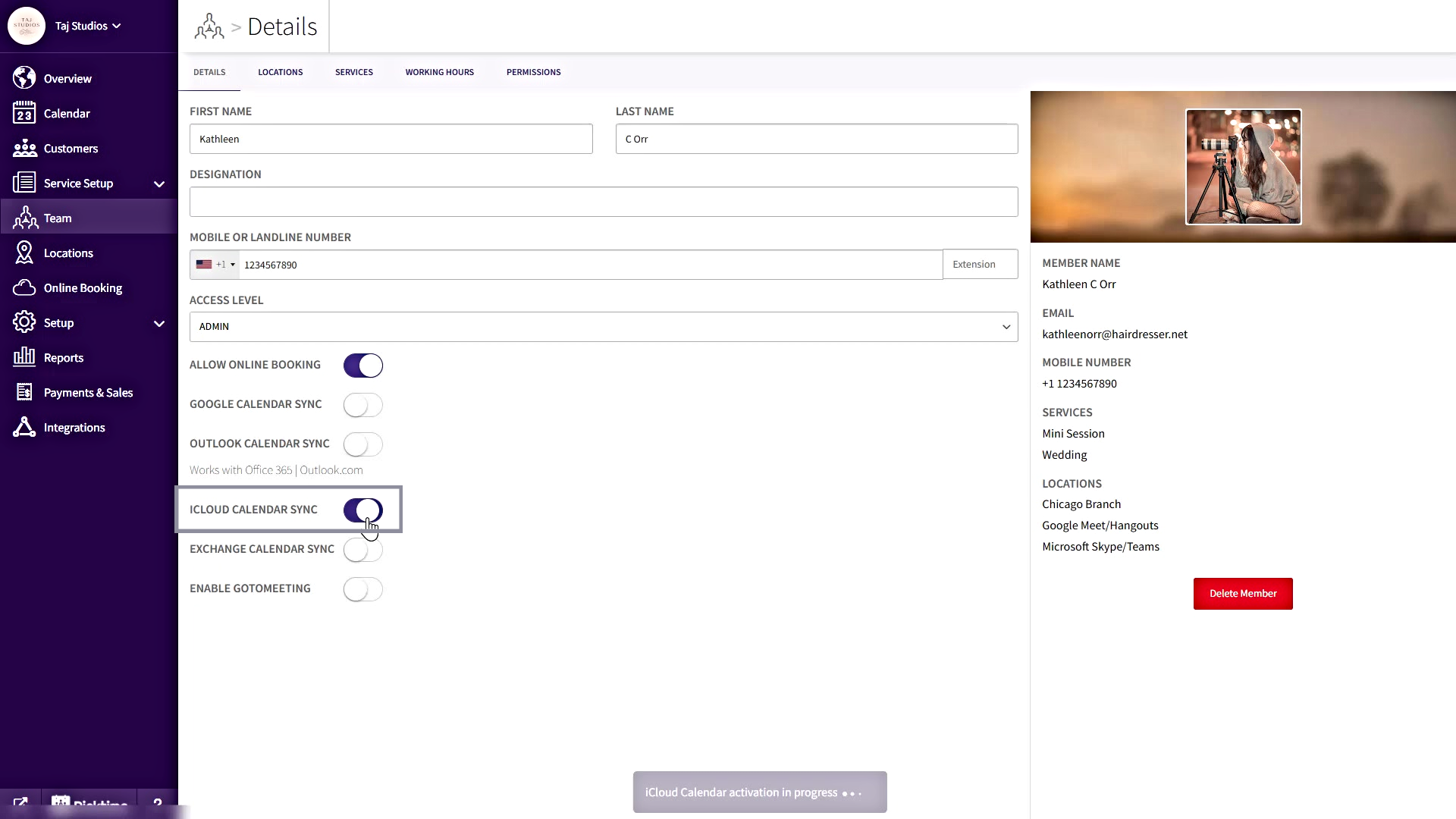
- With the Starter plan & Pro plan, you can enable two-way sync with iCloud Calendar. For enabling iCloud sync, Go to Team> Select the team member

- Turn on the toggle for the iCloud calendar you want to sync with.
- In the next pop-up, log in to your iCloud account with app-specific password
- To create an app-specific password, log in to your Apple ID account page (https://appleid.apple.com/account/home) from the browser.
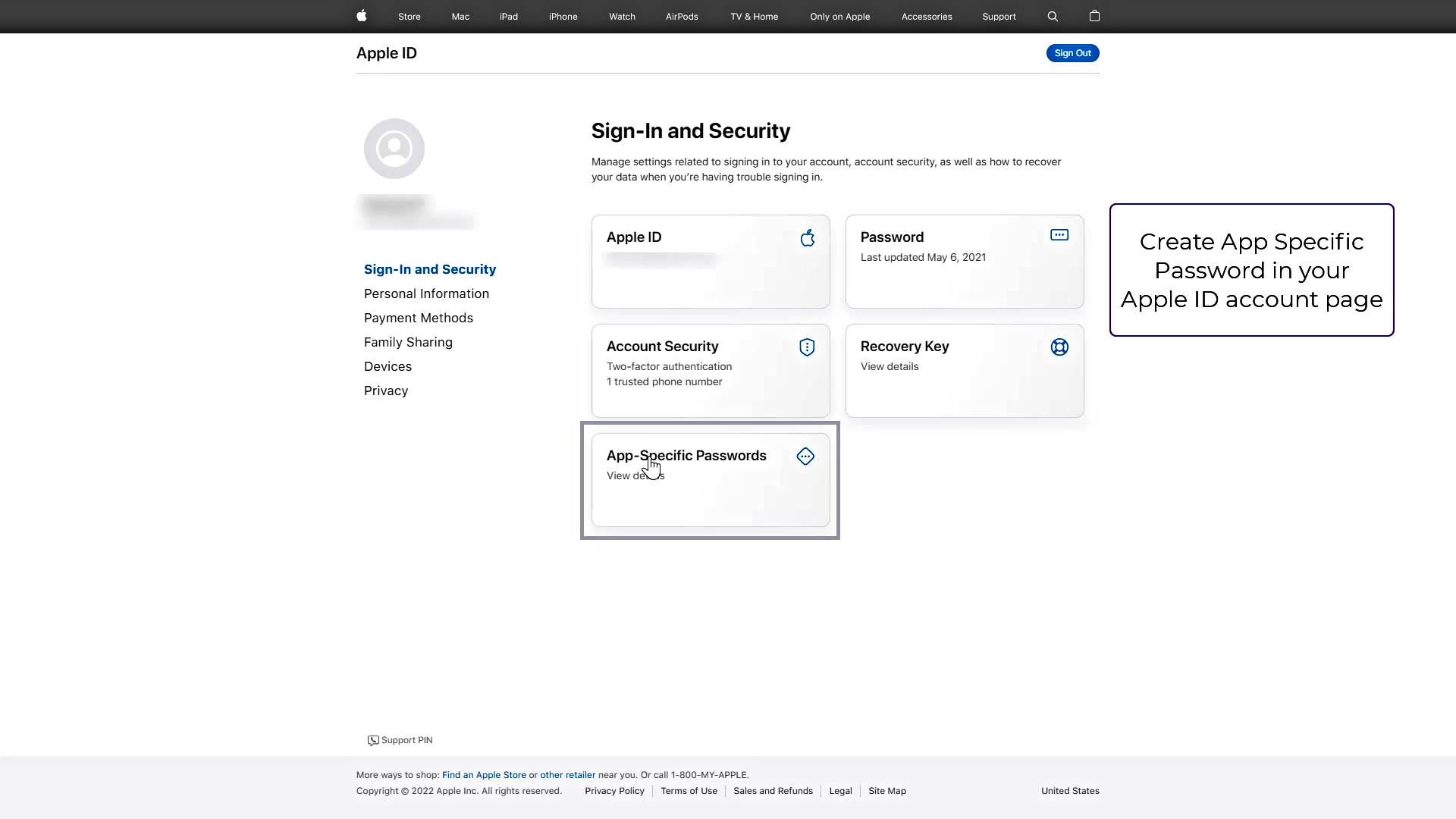
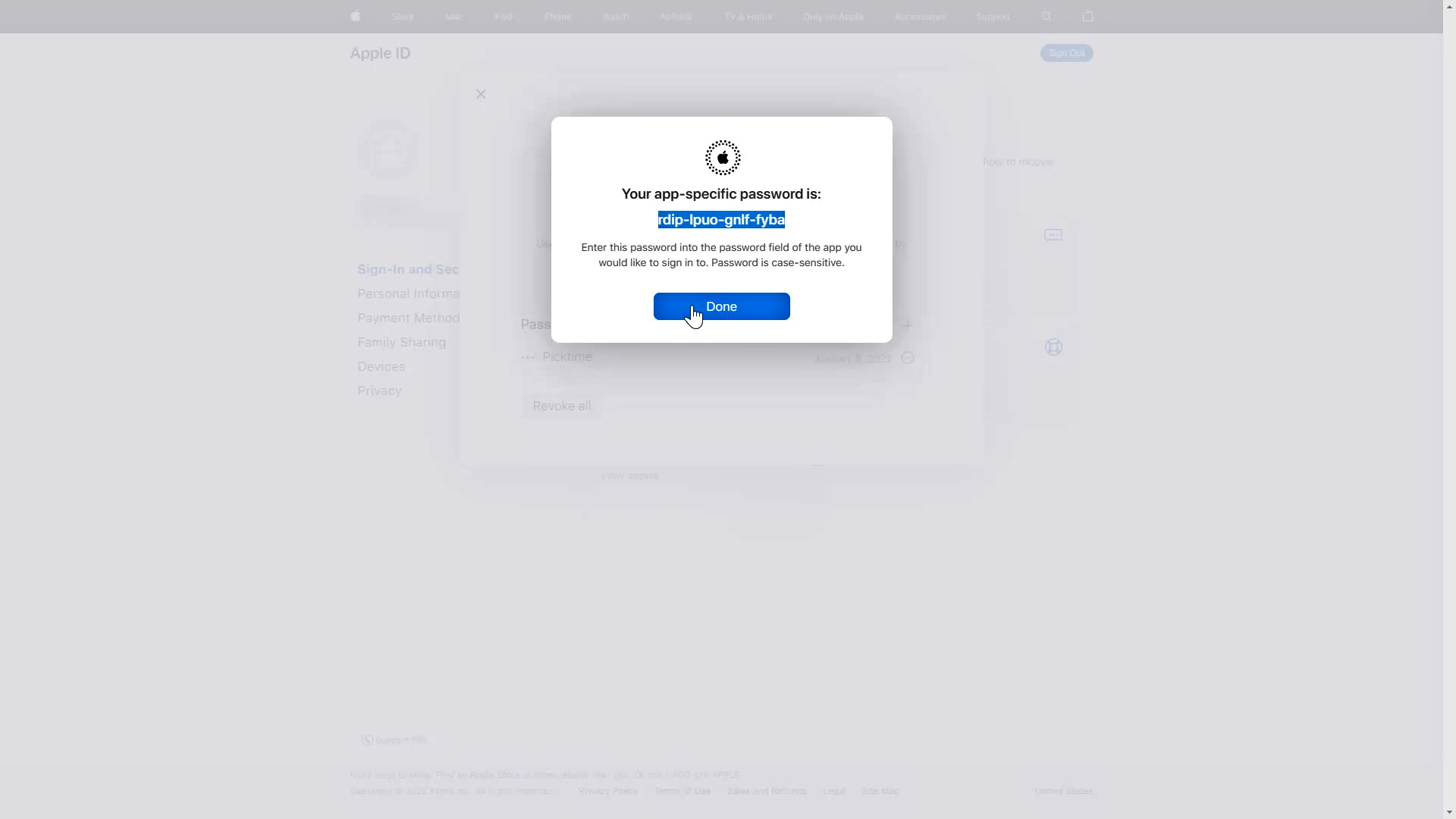
- Go to Sign-In and Security section, click on App-Specific Password then click Generate Password button. Now copy the generated password.
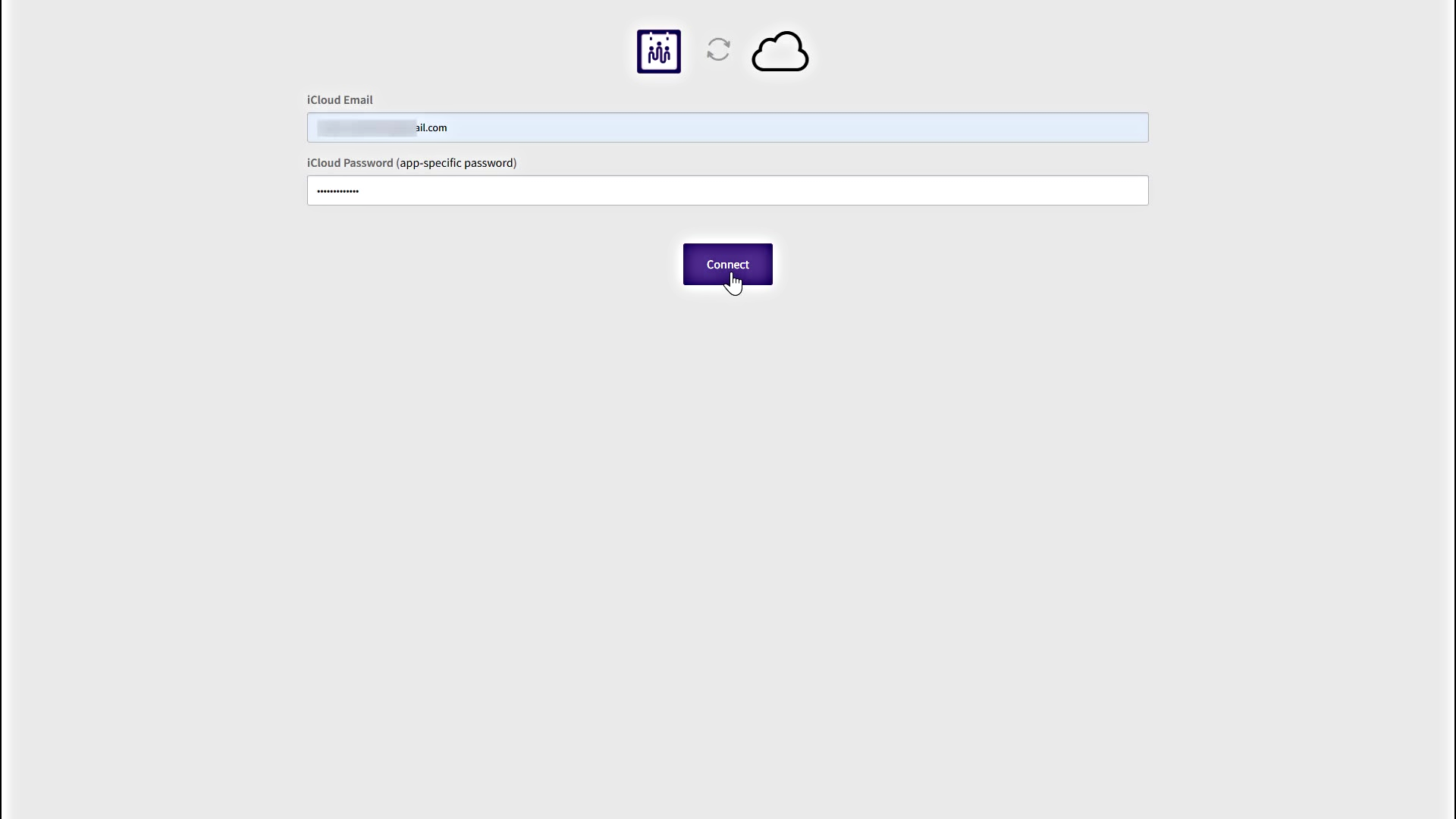
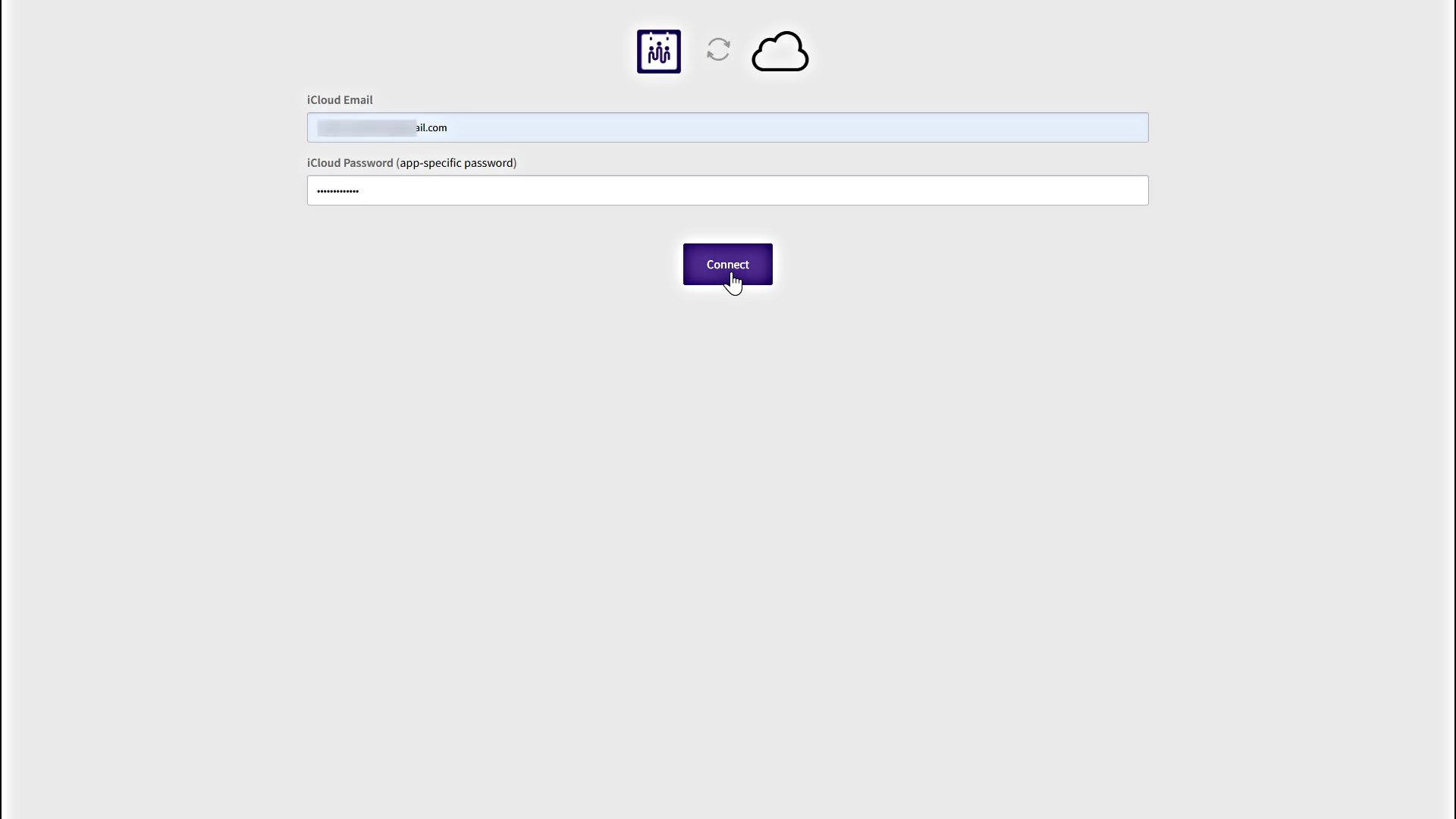
- Enter the iCloud email and paste the App-Specific Password and click on Connect button.
- In the next iCloud calendars pop-up, Select any one of the calendars and save it.
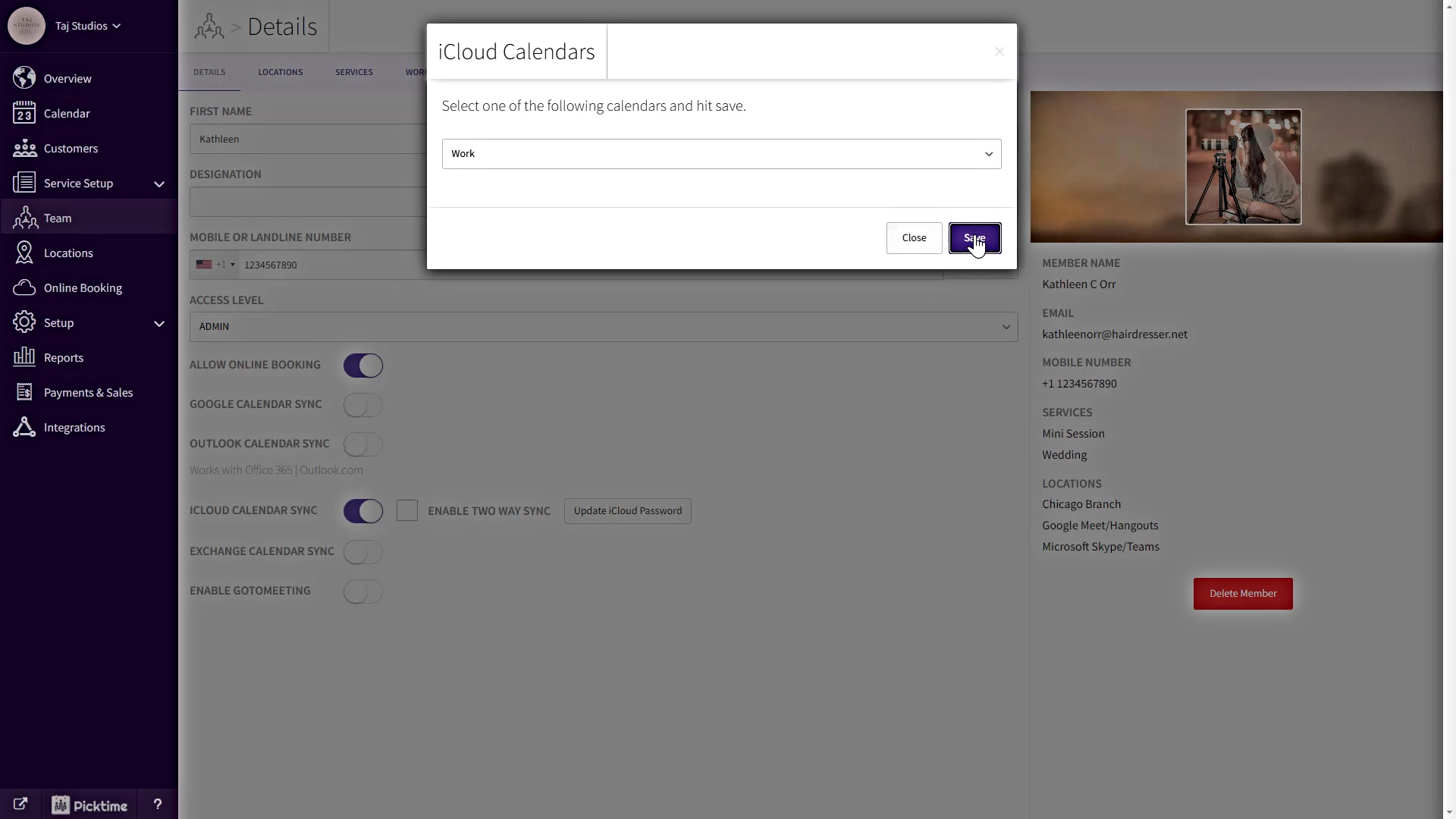
- After selecting the calendar, enable two-way sync of the iCloud calendar and save it.

Please note only all new appointments(which are created after enabling the two way sync) will be reflected in your Apple calendar.
Updated on: 04/03/2026
Thank you!