
How to merge duplicate contacts in Picktime?
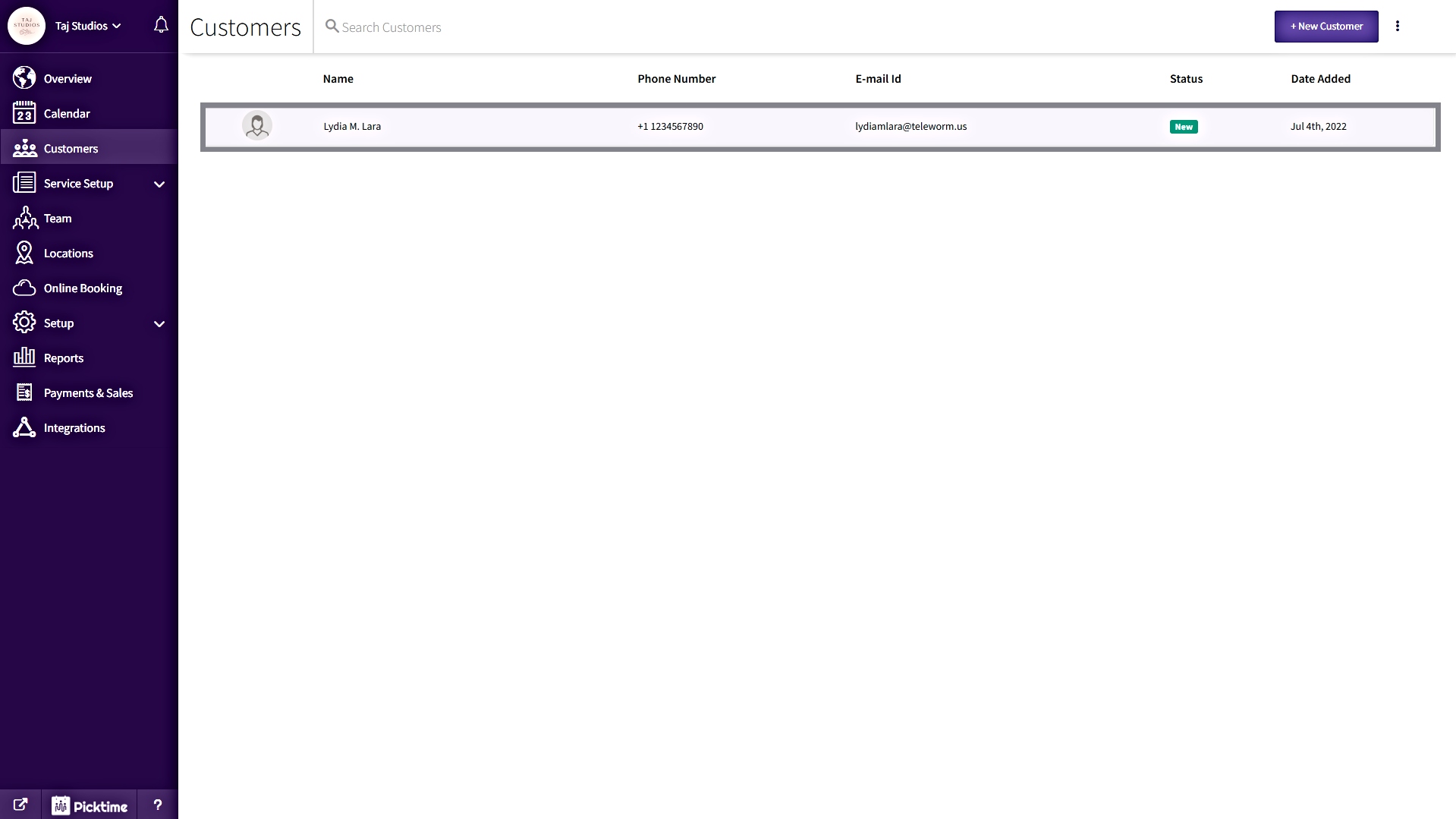
It is important to merge duplicate contacts so that all of your contacts are organized and saved in one place. Once you have merged all of your duplicates, you will be able to find a person and their upcoming appointments with just a few clicks.
Follow these steps to merge duplicate contacts,
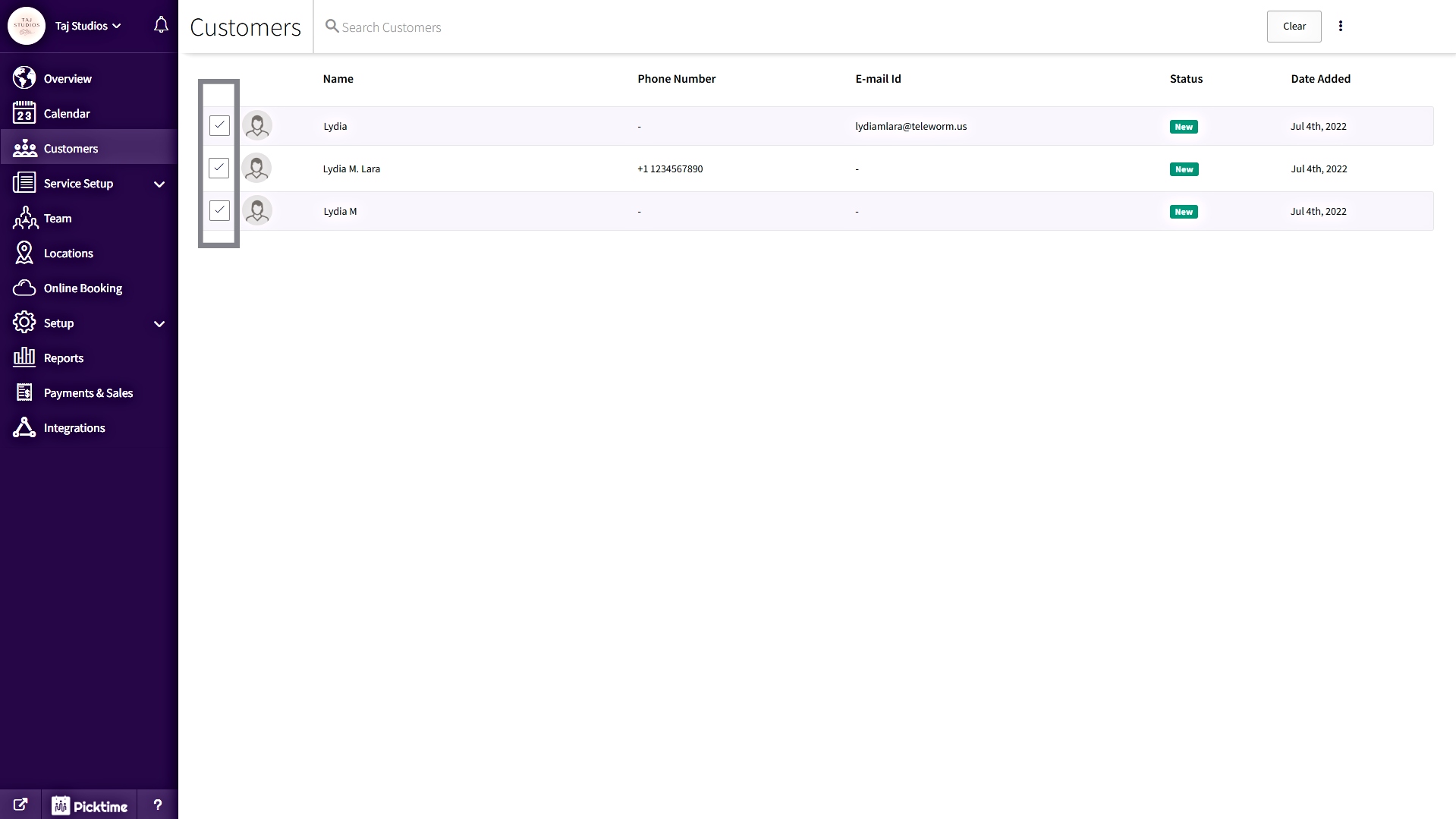
- Go to the Customers tab in the side navigation, and select the checkboxes of the duplicate contacts to merge them.
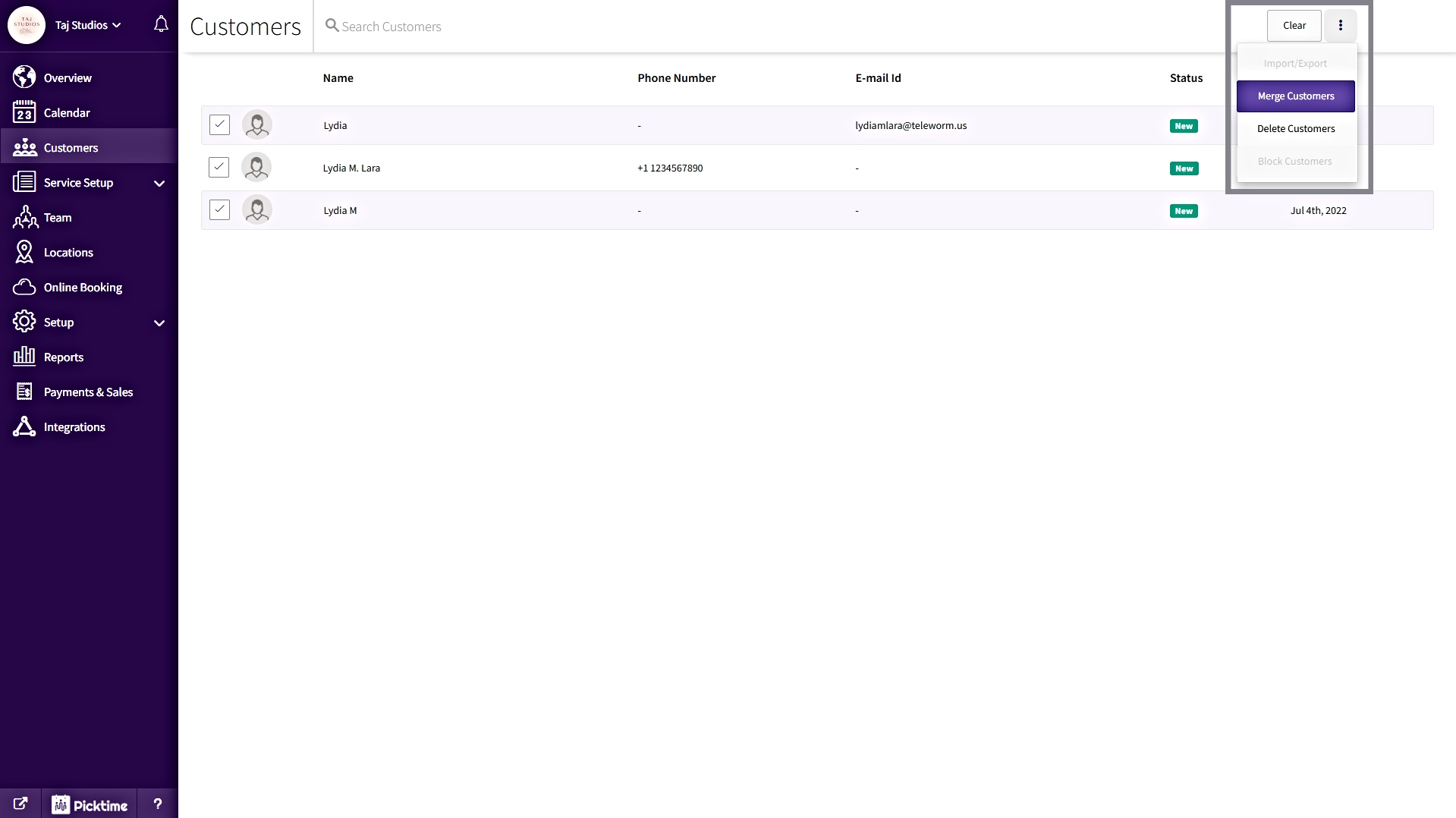
- Now, click on the three vertical dots at the top right corner, then click on the “merge contacts” option from the drop-down menu.
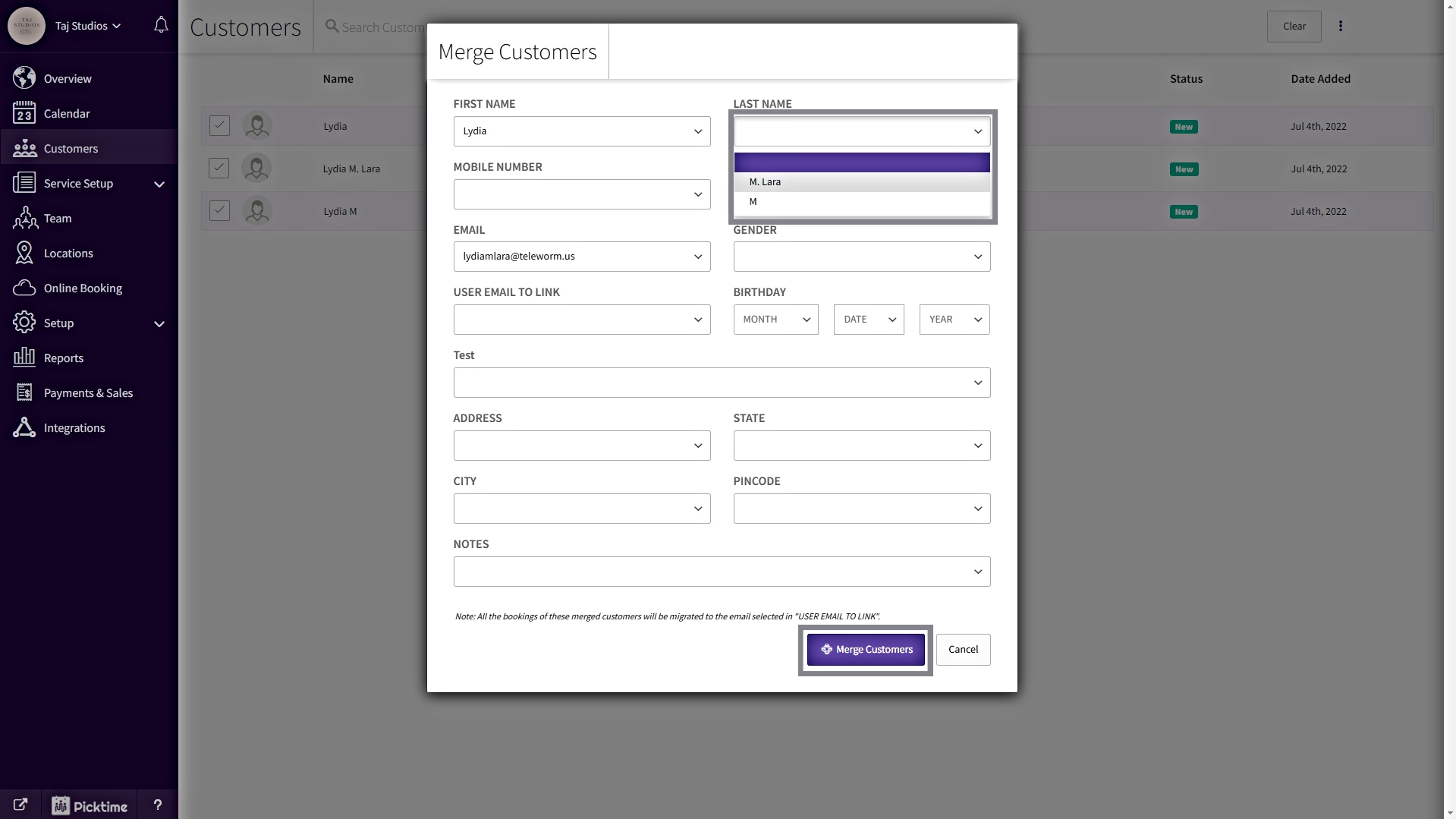
- In the Merge Contacts pop-up, all the fields will have a drop-down menu to select. Select the options from each drop-drop whichever you would like to have.
Note:
Email reminders and notifications will be sent to the email address selected in the “EMAIL” field.
All the bookings of these merged contacts will be migrated to the email address selected in the "USER EMAIL TO LINK" field. Email address will be shown in the "USER EMAIL TO LINK" field only if the secondary email address was already registered with Picktime.
Updated on: 04/03/2026
Thank you!