
How to Update Team Member Email Address on Picktime?
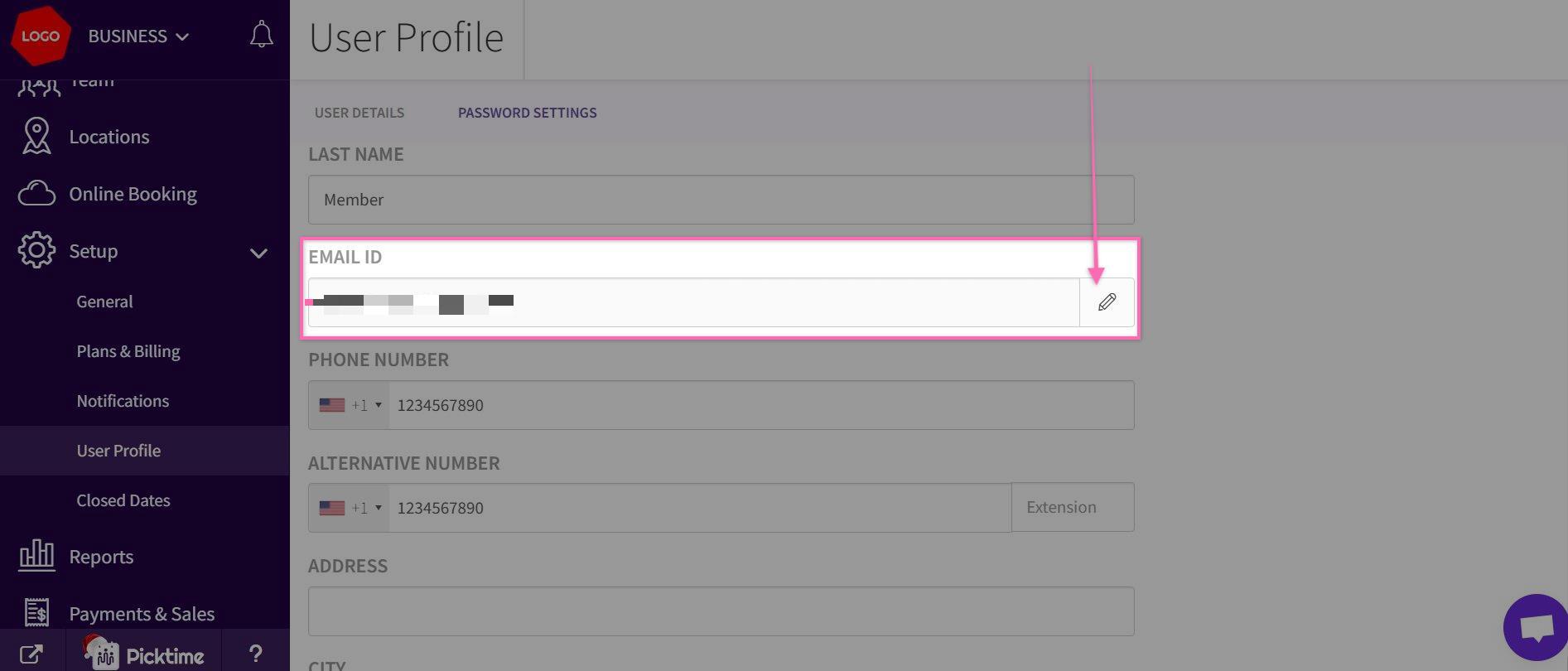
- In the left side navigation, Select Setup menu, you can find the 'User Profile' option. Click on it to access your user details.

- Once in the User Profile section, identify the 'EMAIL ID' field. Click on edit ( pencil icon ). In the EMAIL ID field, input the new email address that you want to update. Ensure that this email is not already registered as an Admin, Team member, or customer in any Picktime business.
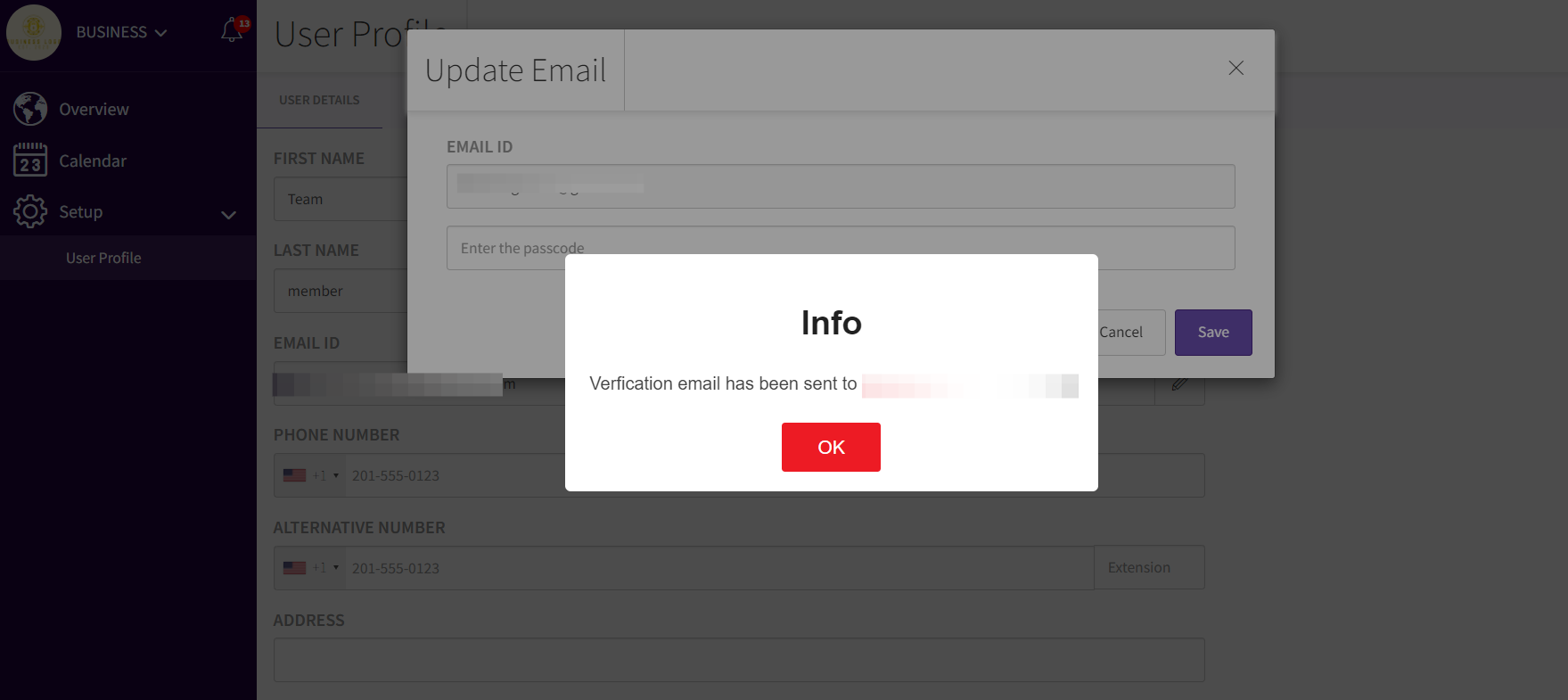
- After entering the new email address, Picktime will initiate a verification process. A passcode will be sent to the email address you provided. Retrieve the passcode from your email.
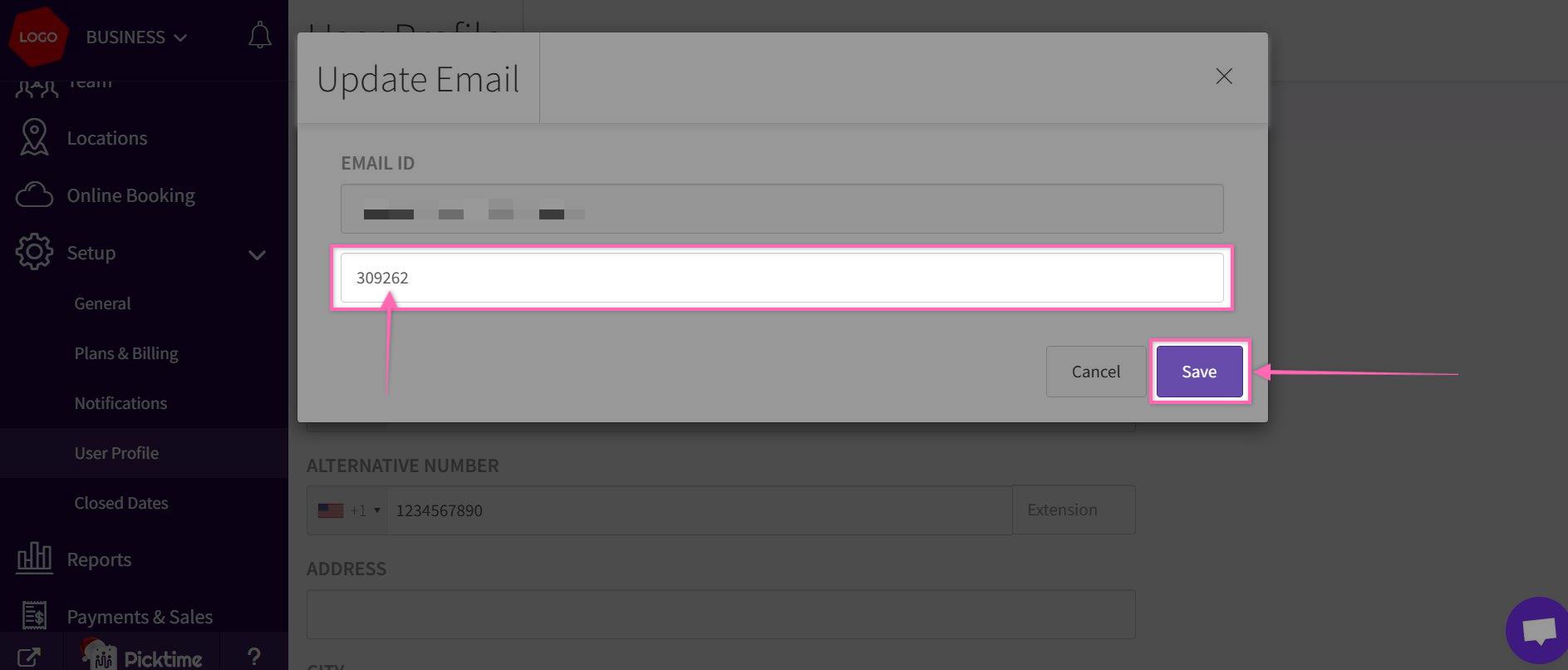
- Enter the passcode received in the designated area to verify your new email address. This step ensures the accuracy and security of the information being updated.
- Once the email address is successfully verified, Picktime will automatically update it across all associated businesses and within the Team list.
Note: Only team members can change their own email addresses. Admins do not have the option to change their team member's email address.
Updated on: 04/03/2026
Thank you!